SETUP GUIDE · SLACK INTEGRATION
Connect Slack to Skrift.
Account summaries and alerts arrive in the Slack channels your team already uses for each customer.
Version 1.0 · October 2026
Before you begin
Make sure you have the following before you start:
- A Skrift account with the Admin role.
- Permission to install apps in your Slack workspace. If your workspace requires approval, a Slack administrator must approve the Skrift app.
- Your CRM already connected to Skrift, with at least 3 accounts imported. If you have not done it yet, follow the Salesforce setup guide first.
- One Slack channel per customer account, following a consistent name, for example
#customer-acme. At least 3 of them must exist. - A channel for alerts, for example
#skrift-alerts. - About 15 minutes.
Decide first
| Question | Recommendation |
|---|---|
| Who are the integration owners? | One or two people responsible for the integration, who keep the account-to-channel mapping up to date. |
| How are customer channels named? | Use one pattern for all customers, such as customer-{accountname}. Skrift learns it from your first three mappings and maps the rest automatically. |
| Which notifications? | Enable all three: Weekly Account Summary, No Activity Alerts and Product Feedback Alerts. |
| Where do alerts go? | A dedicated channel, such as #skrift-alerts, so product feedback does not get lost in customer channels. |
01
Connect Slack
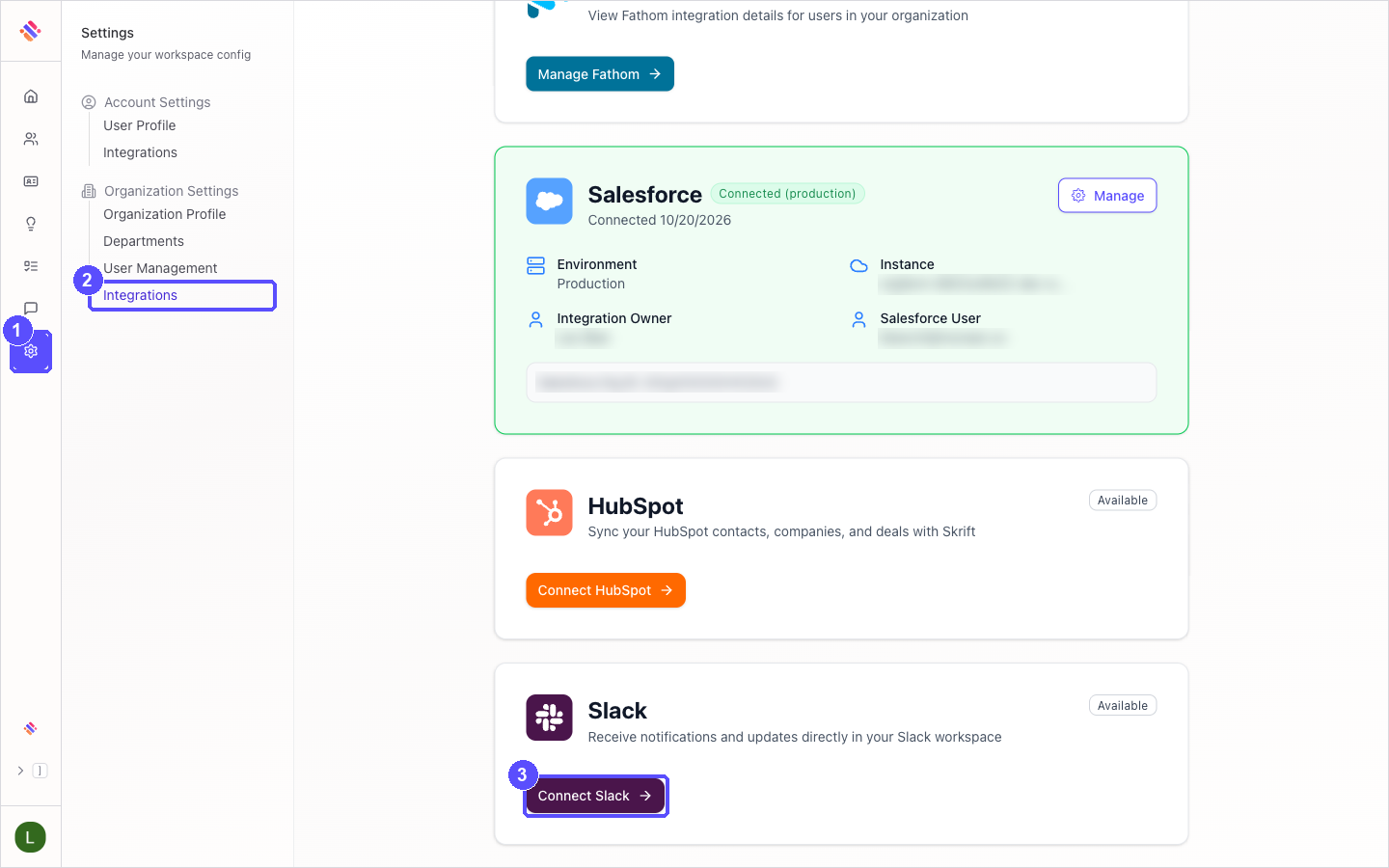
In Skrift, click the Settings icon in the left navigation bar.
Under Organization Settings, click Integrations.
On the Slack card, click Connect Slack. Slack opens in a new window. If you are not signed in, Slack first asks for your workspace URL.
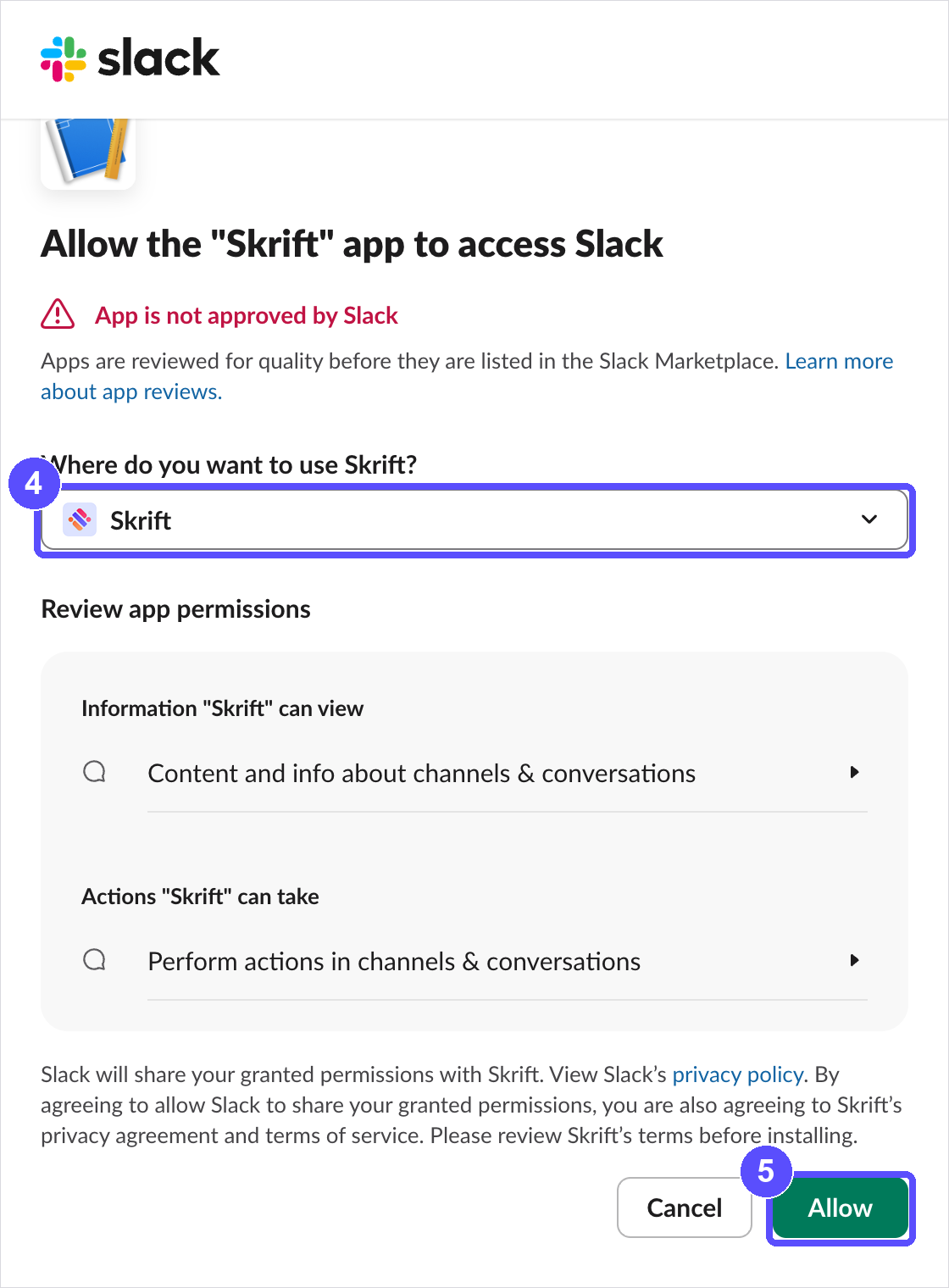
Under Where do you want to use Skrift?, check that your company's workspace is selected.
Review the permissions and click Allow. The Slack window closes and Skrift opens the setup wizard. If the wizard does not open, reload the page and click Manage on the Slack card; the setup resumes where you left it.
02
Choose integration owners
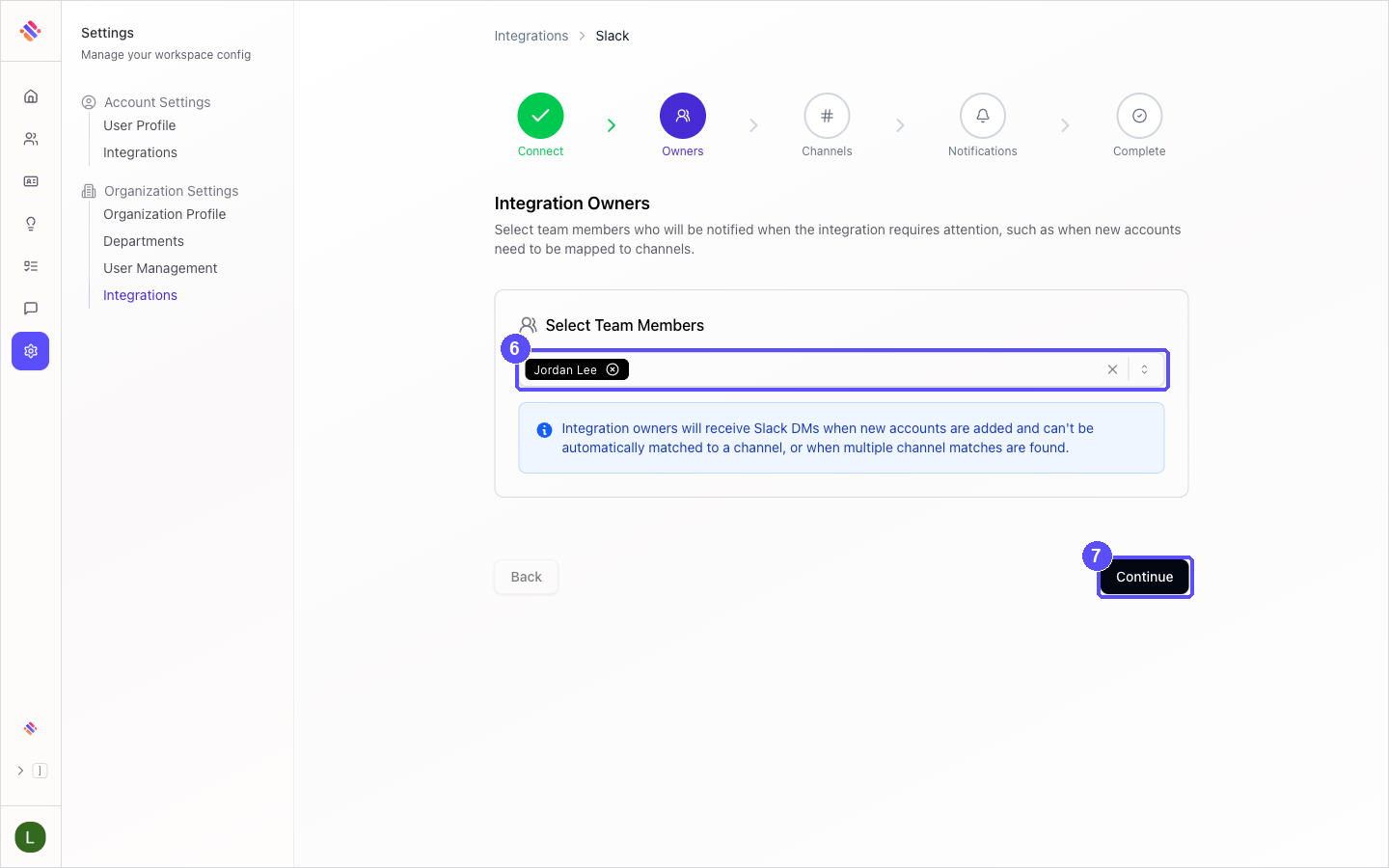
Under Select Team Members, choose the integration owners. Your user is selected by default. At least one owner is required.
Click Continue.
03
Map accounts to channels
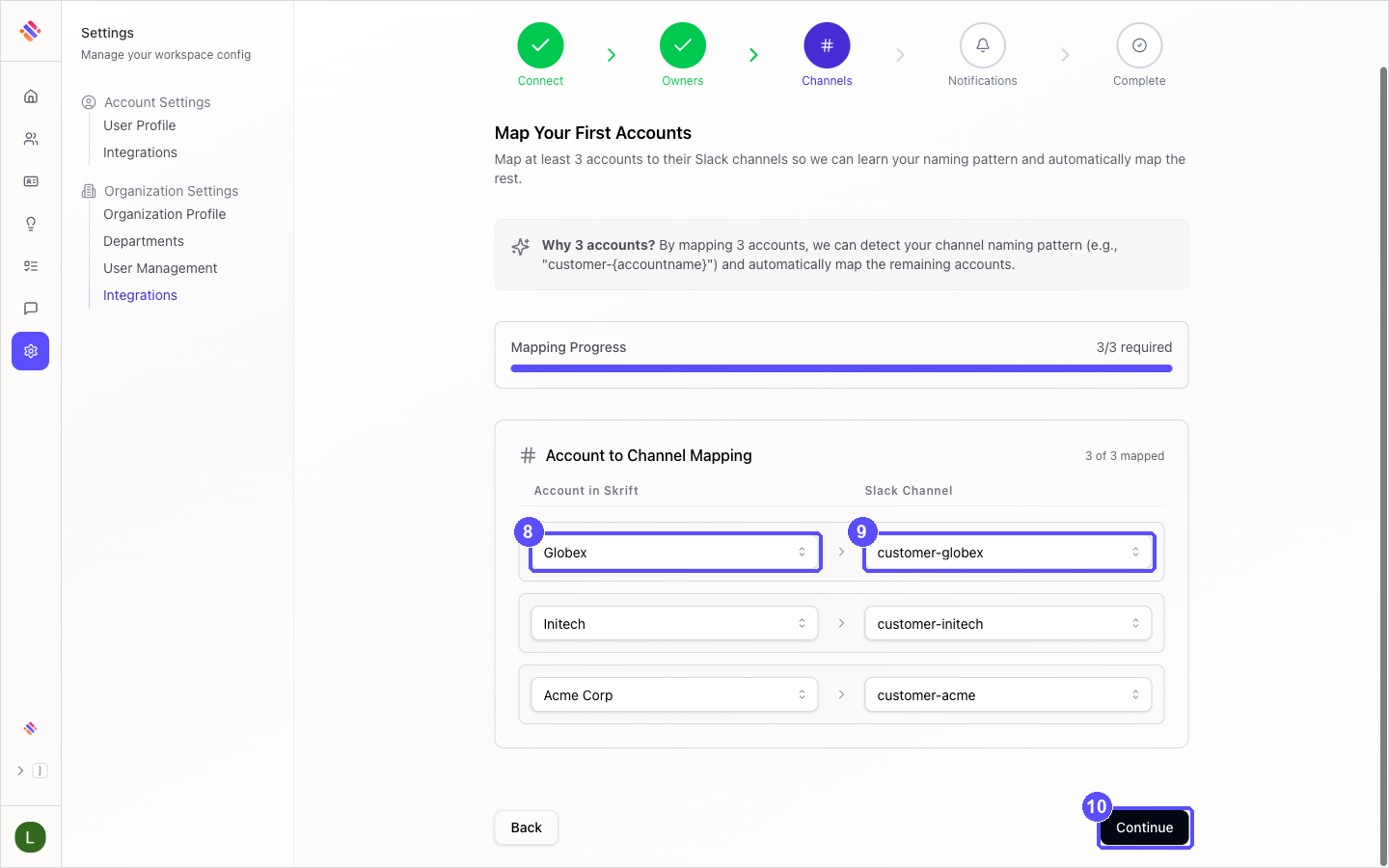
In the first row, choose an account under Account in Skrift.
Choose its channel under Slack Channel. Repeat for two more accounts until Mapping Progress shows 3/3 required.
After the third mapping, Skrift saves them and opens the review screen automatically. If you come back to this page later, click Continue.
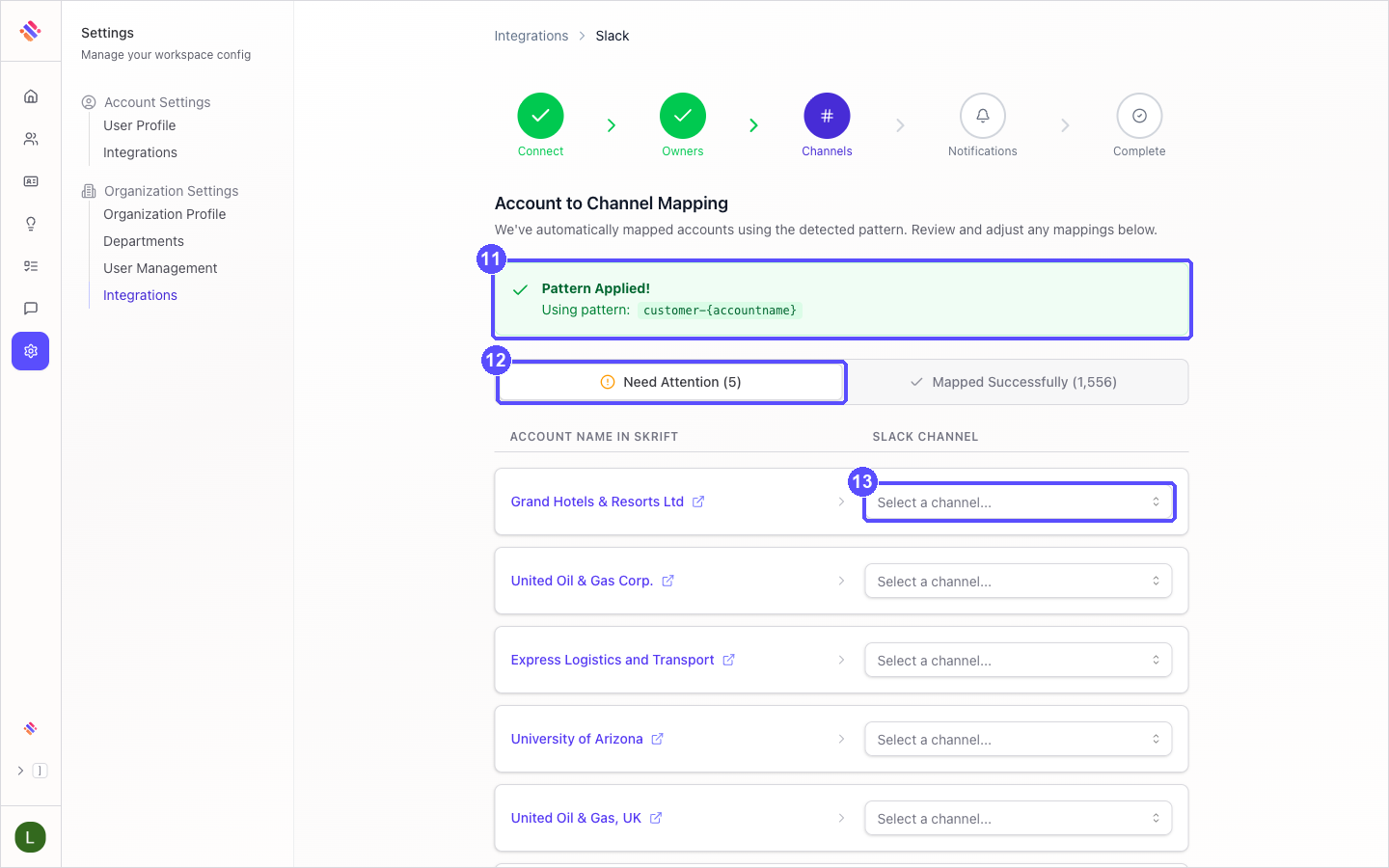
Skrift applies the naming pattern it detected to every account. Pattern Applied! shows the pattern in use.
Open Need Attention to see the accounts without a matching channel.
Choose a channel for each of them, or leave them empty to map later. Then scroll to the bottom of the list and click Continue.
04
Choose notifications
Switch on the notifications you want. Use View Sample Notification to preview each one.
When Product Feedback Alerts is on, choose the channel for alerts.
Click Complete Setup.
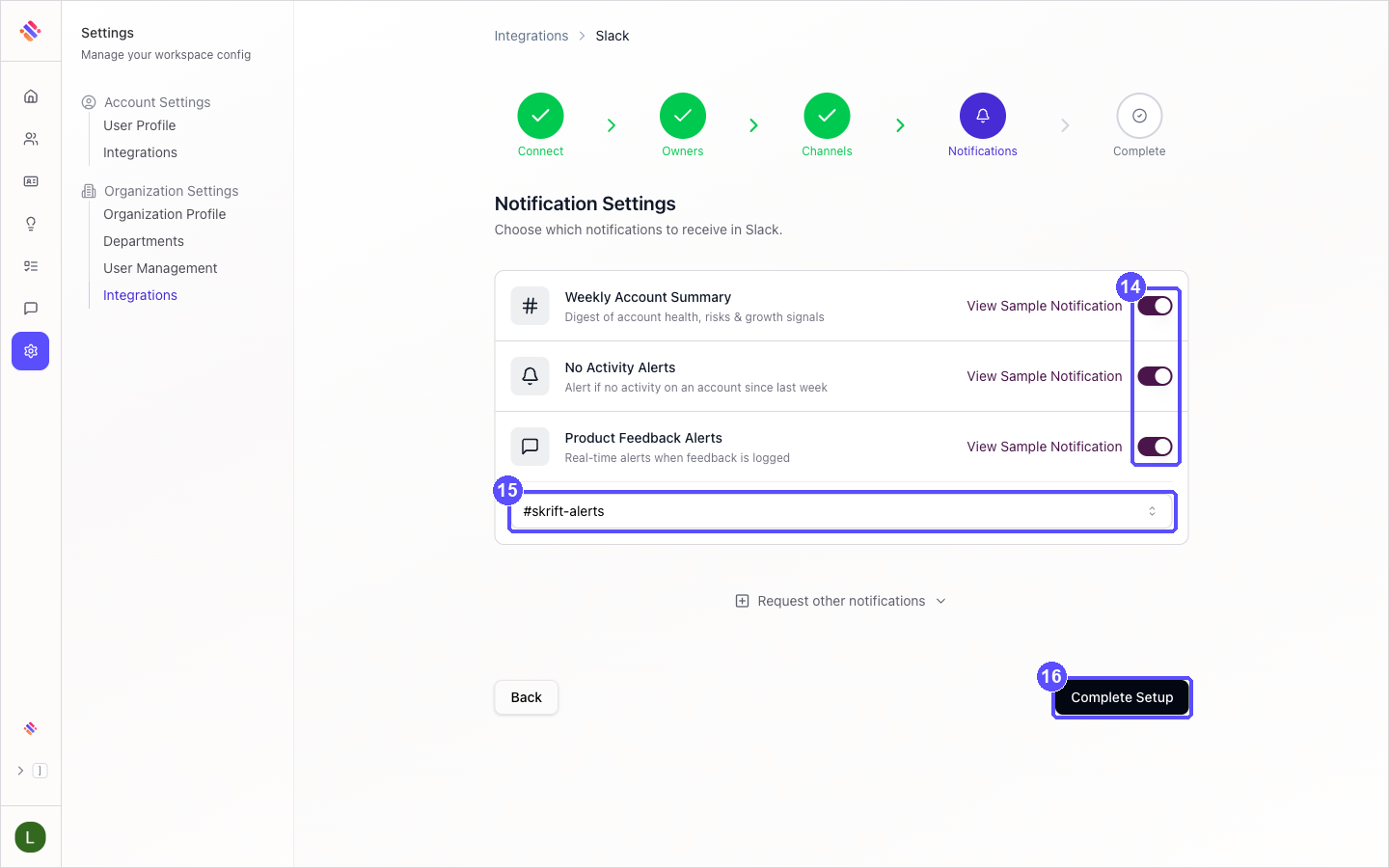
| Notification | When it arrives |
|---|---|
| Weekly Account Summary | Every Monday morning, in each account's channel. |
| No Activity Alerts | Weekday mornings, in the channel of each account with no customer activity since the previous week. |
| Product Feedback Alerts | As soon as someone logs product feedback on an account in Skrift, in the alerts channel. |
05
Confirm it worked
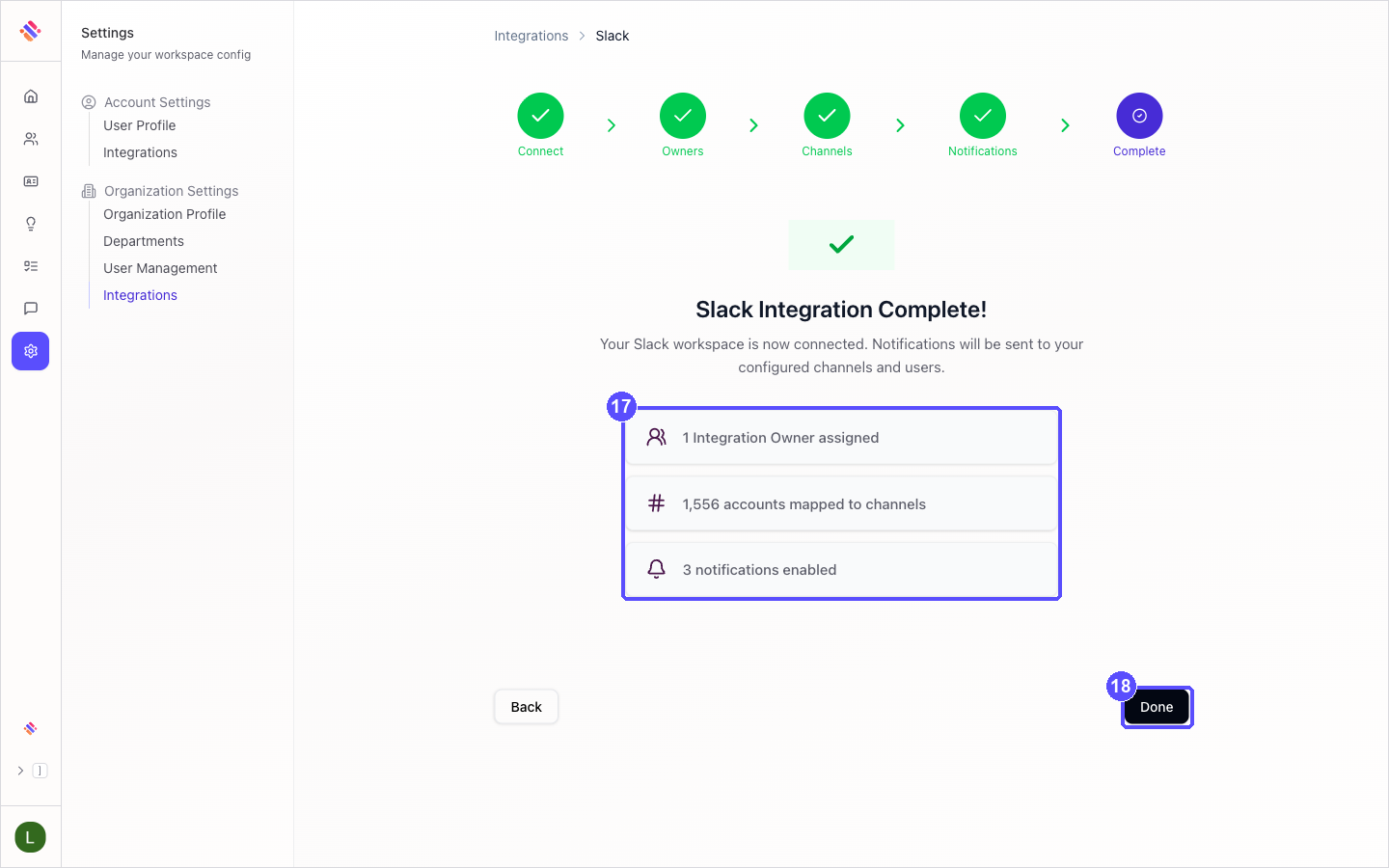
The Slack Integration Complete! screen summarizes the owners, the mapped accounts and the enabled notifications.
Click Done.
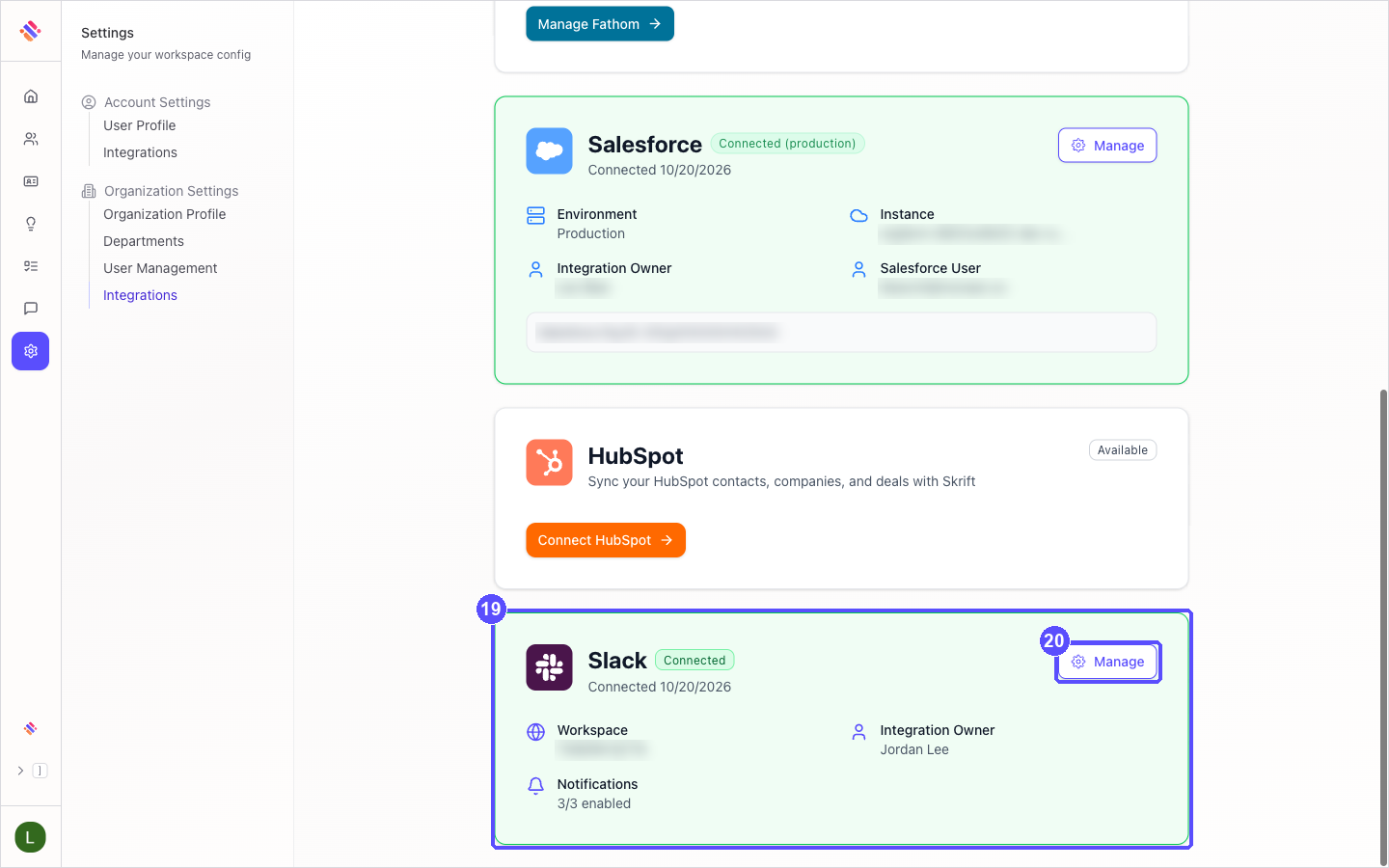
On the Integrations page, the Slack card shows Connected and the number of enabled notifications.
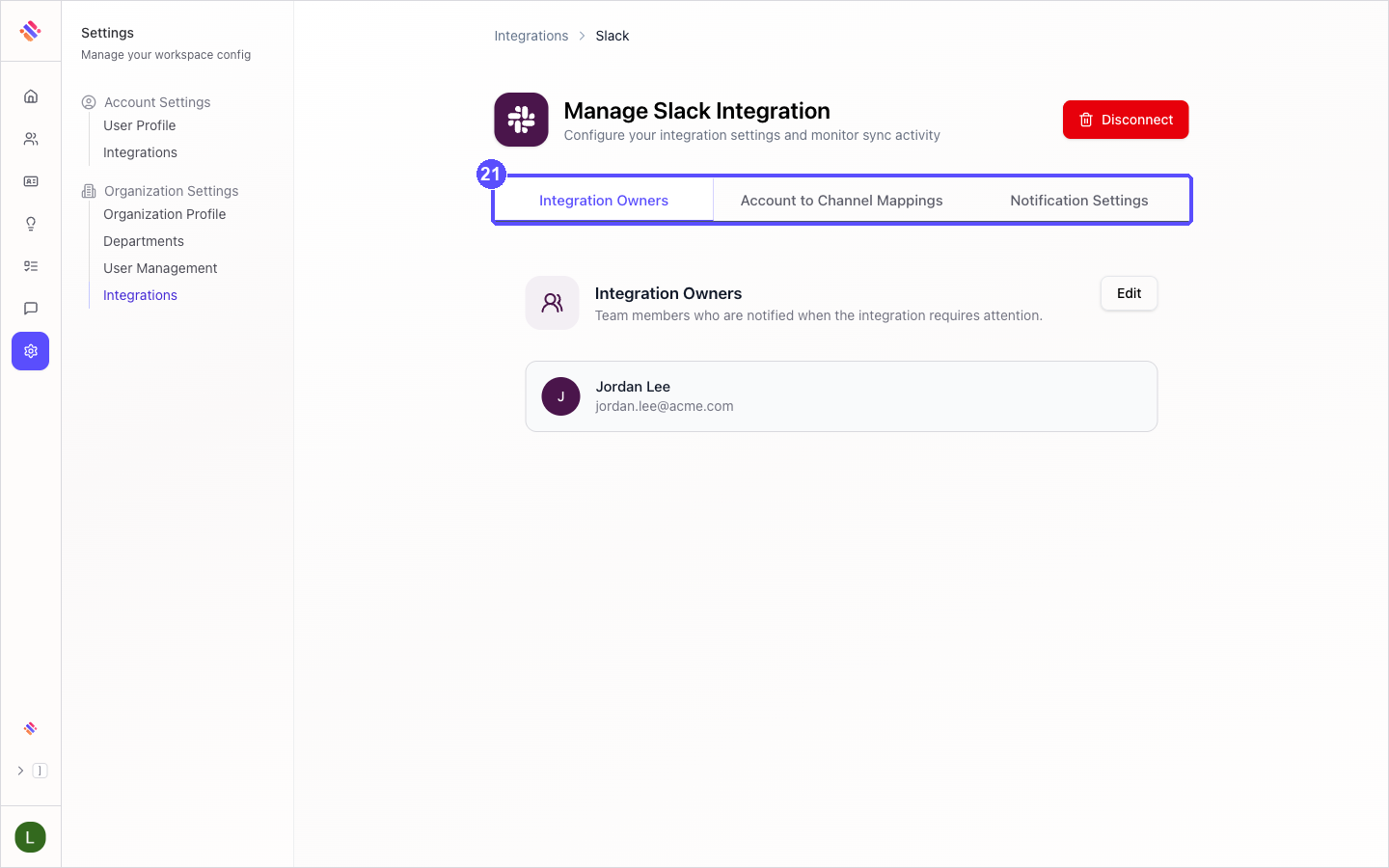
Click Manage to change the setup later.
On Manage Slack Integration, the tabs Integration Owners, Account to Channel Mappings and Notification Settings let you edit each part of the setup.
Troubleshooting
| What you see | What to do |
|---|---|
| Popup was blocked. Allow popups for this site and try again. | Allow pop-up windows for Skrift in your browser, then click Connect Slack again. |
| Slack asks you to request approval instead of showing Allow | Your workspace requires admin approval for new apps. Ask a Slack administrator to approve Skrift, then connect again. |
| Please select at least one integration owner | Choose at least one person under Select Team Members. |
| Map at least 3 accounts to continue | Complete three account-to-channel rows. Skrift needs three examples to learn your naming pattern. |
| A channel is missing from the list | It is probably private. Type /invite @Skrift in that channel and reload the page. |
| Unable to load or save a step (for example Unable to load accounts and channels. Please refresh.) | Reload the page; the wizard resumes at the same step. If it persists, contact your Skrift representative. |
| Notifications do not arrive | Under Manage, check that the notification is on in Notification Settings and that the account has a channel in Account to Channel Mappings. For private channels, invite @Skrift. |
| A new account was not mapped | Skrift maps new accounts automatically when a channel that follows your pattern exists. If the channel has a different name, or was created later, map it under Manage › Account to Channel Mappings. |