SETUP GUIDE · SALESFORCE INTEGRATION
Connect Salesforce to Skrift.
Your Salesforce users, accounts and contacts flow into Skrift automatically and stay up to date. No exports, no manual data entry.
Version 1.0 · October 2026
Before you begin
Make sure you have the following before you start:
- A Skrift account with the Admin role. The Integrations settings are only visible to administrators.
- A Salesforce user with the System Administrator profile or the View All Data permission. At a minimum, the user needs the API Enabled permission and read access to Users, Accounts and Contacts.
- About 15 minutes.
Decide what to import
The setup wizard asks four questions. Decide your answers before you start; the table shows what Skrift recommends.
| Question | Recommended answer | Can I change it later? |
|---|---|---|
| Which users? | Import All Users. Choose Import Selected Users to import only part of your team. | Yes: on the Salesforce card, click Manage, then the Users tab. |
| Invite new users now? | Create User & Send Invitation. Choose Create User Only to invite people later. | Invitations that were sent cannot be withdrawn. Users created without an invitation can be invited later from User Management. |
| Which accounts? | Import All Accounts. Alternatives: only accounts owned by the imported users, or a filtered selection. | Yes: on the Salesforce card, click Manage, then the Accounts tab. |
| Which contacts? | Import Associated Contacts, which brings every contact of the imported accounts. | Yes: on the Salesforce card, click Manage, then the Contacts tab. |
01
Connect Salesforce to Skrift
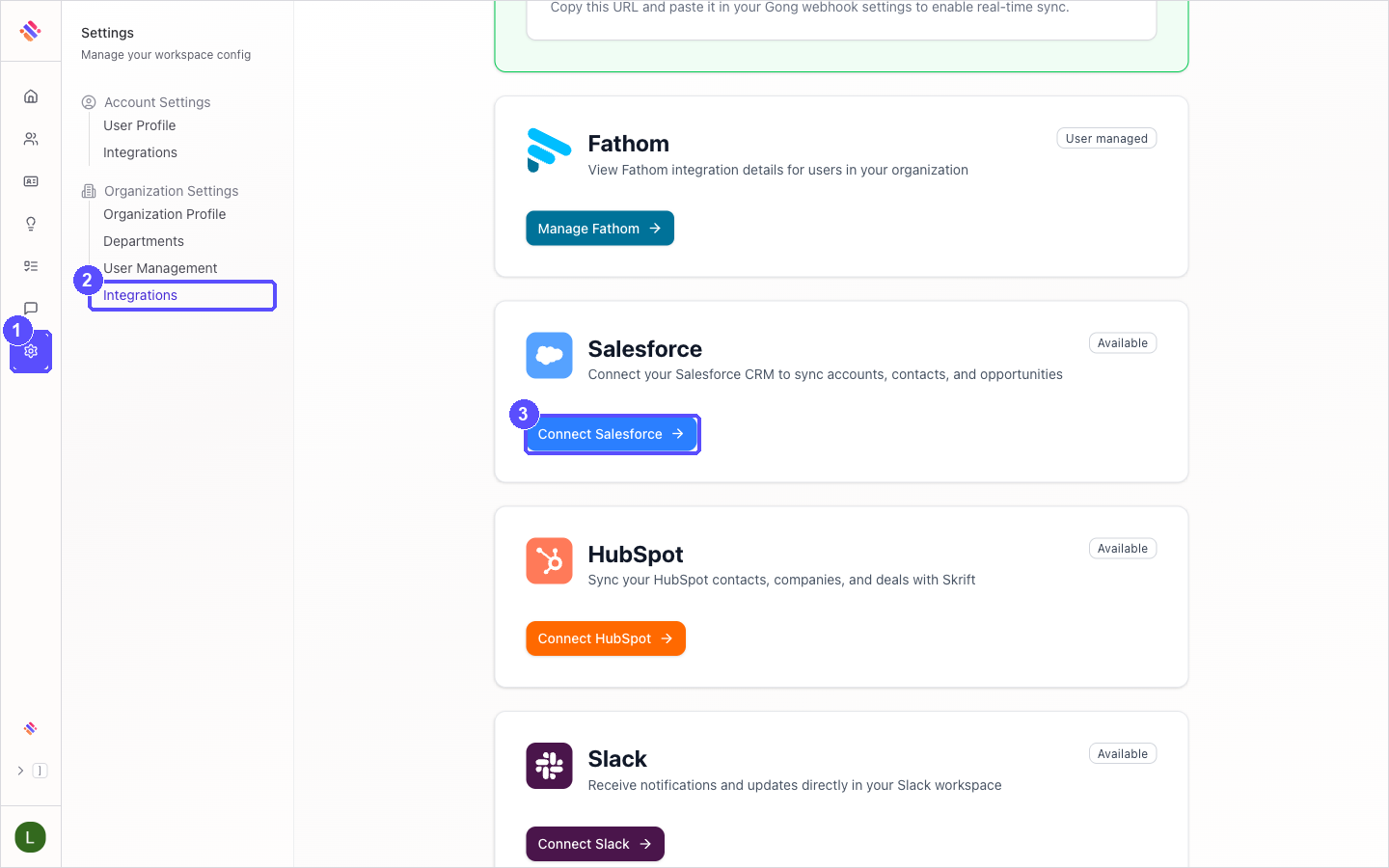
In Skrift, click the Settings icon in the left navigation bar.
Under Organization Settings, click Integrations.
On the Salesforce card, click Connect Salesforce.
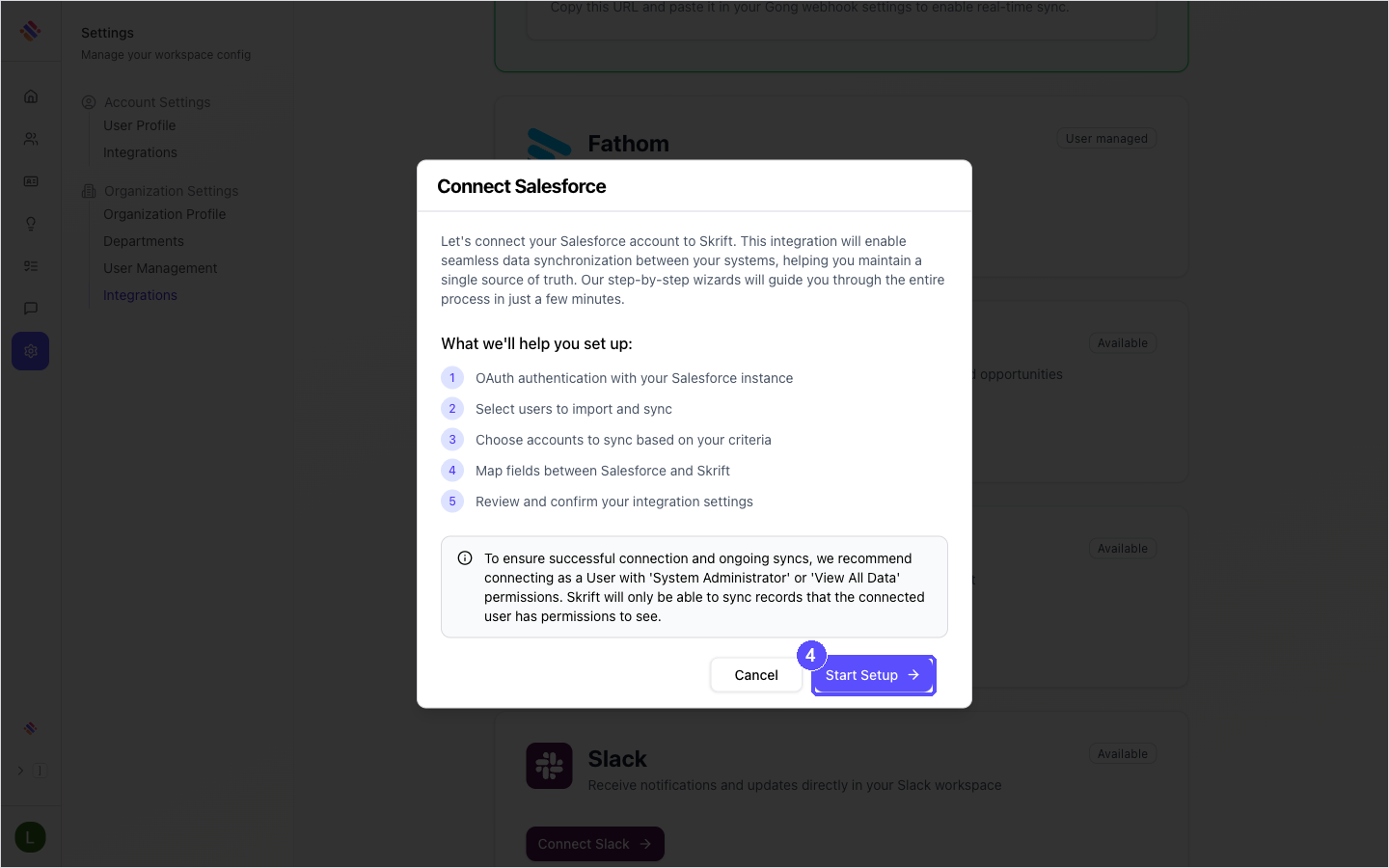
Review the summary of the setup and click Start Setup. Salesforce opens in a new window.
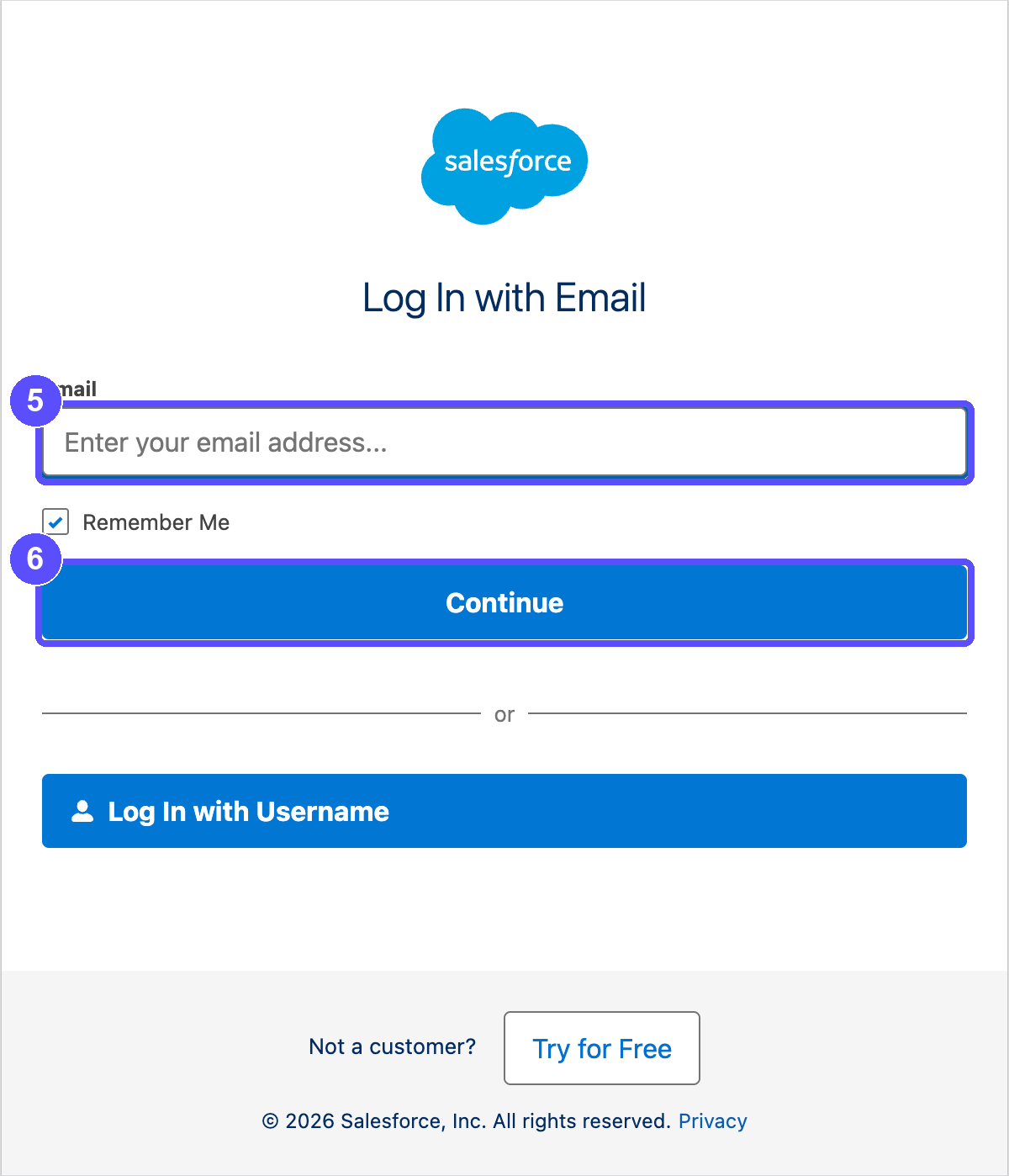
In the Salesforce window, sign in as the Salesforce user you chose. Salesforce may ask for your email first, as shown here, or directly for your username and password; use Log In with Username if you prefer the latter.
Click Continue and complete the sign-in. If Salesforce asks whether Skrift may access your data, click Allow.
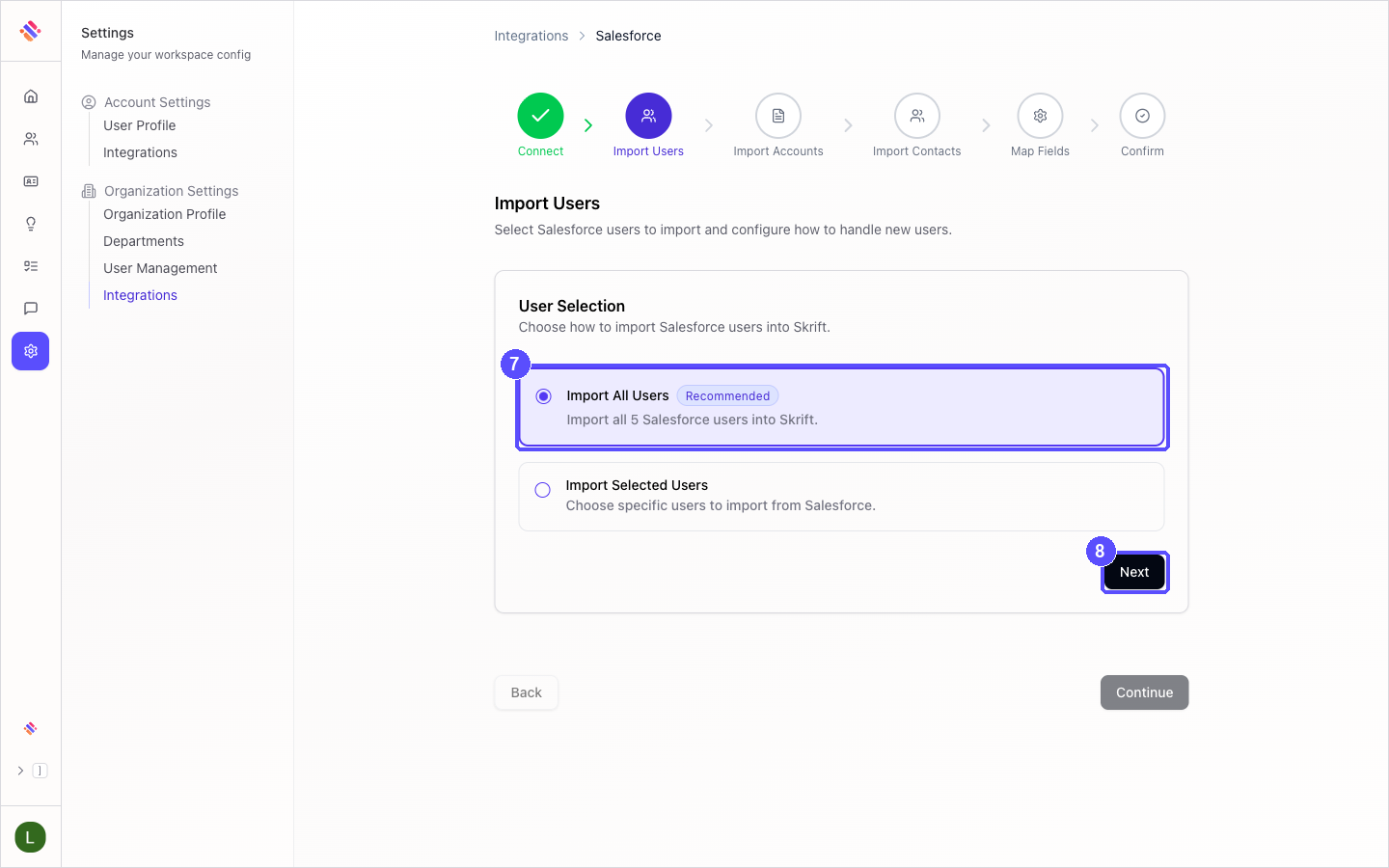
The Salesforce window closes by itself and Skrift opens the setup wizard on the Import Users step.
02
Import users
The wizard shows your progress at the top: Connect, Import Users, Import Accounts, Import Contacts, Map Fields and Confirm.
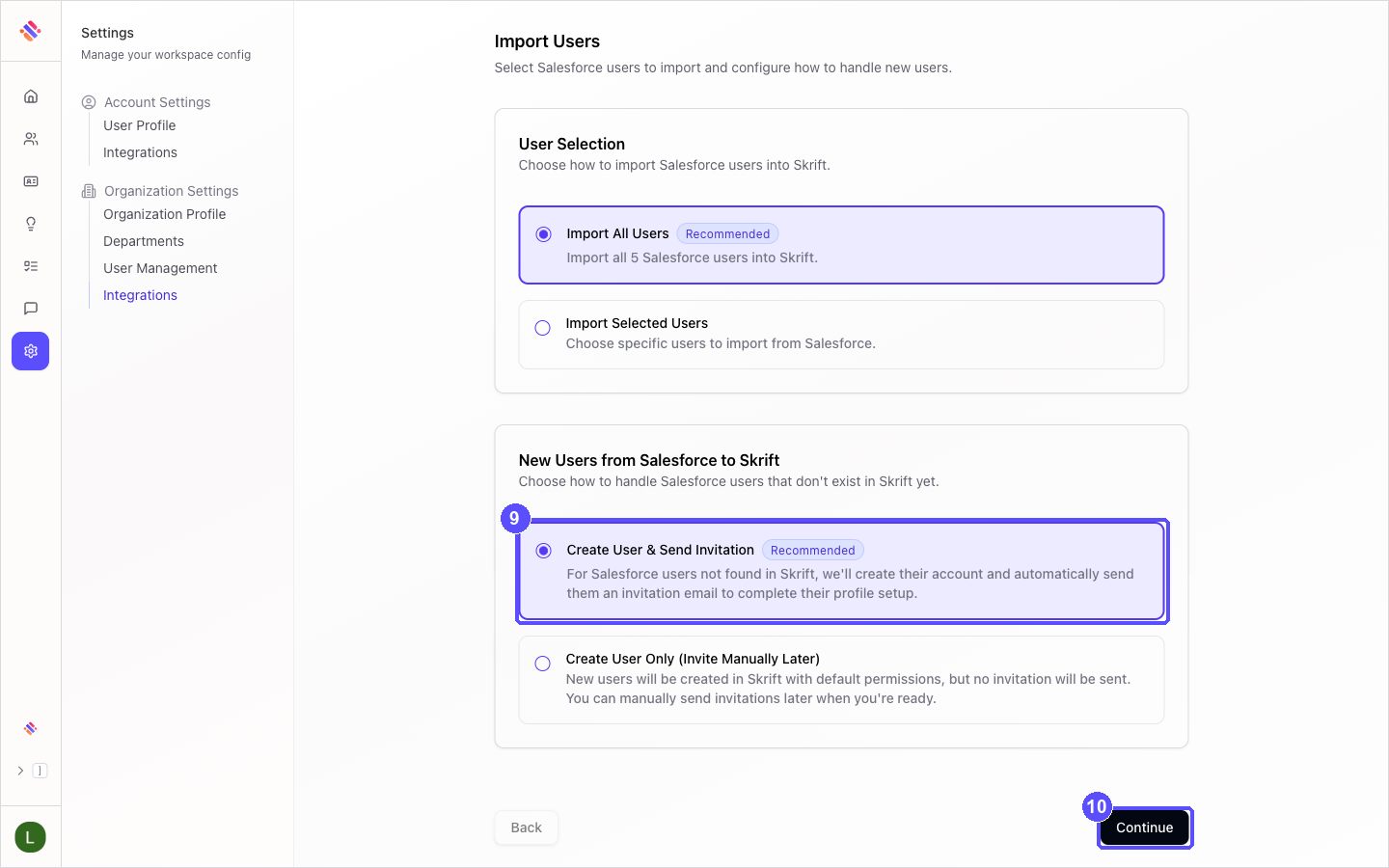
Under User Selection, choose which Salesforce users to import. If you choose Import Selected Users, pick the users from the list that appears.
Click Next.
Under New Users from Salesforce to Skrift, choose what happens with users who do not have a Skrift account yet. With Create User & Send Invitation, each new user receives an invitation email.
Click Continue.
03
Import accounts and contacts
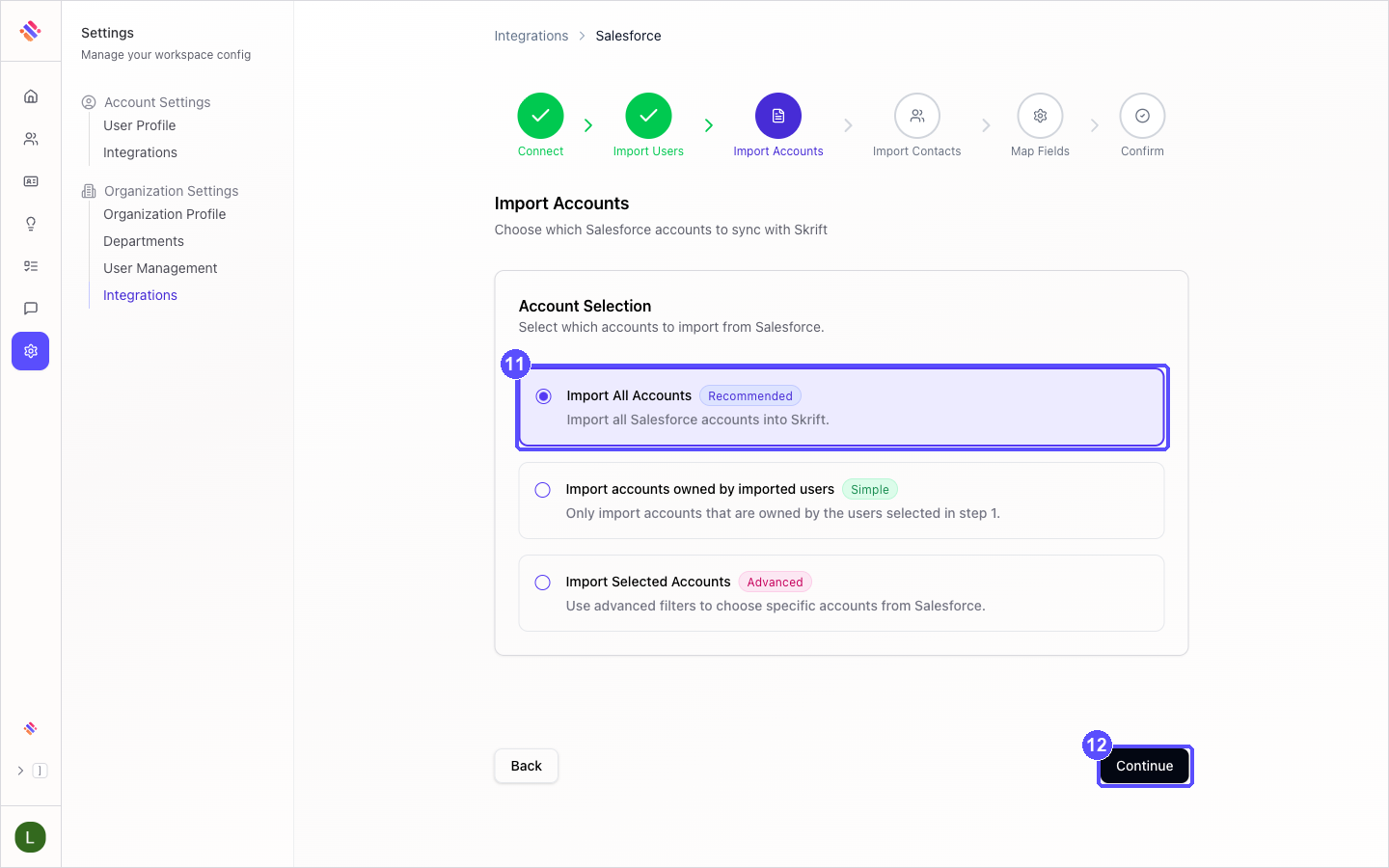
Under Account Selection, choose which accounts to import. Import Selected Accounts lets you build filters or a query for advanced cases.
Click Continue.
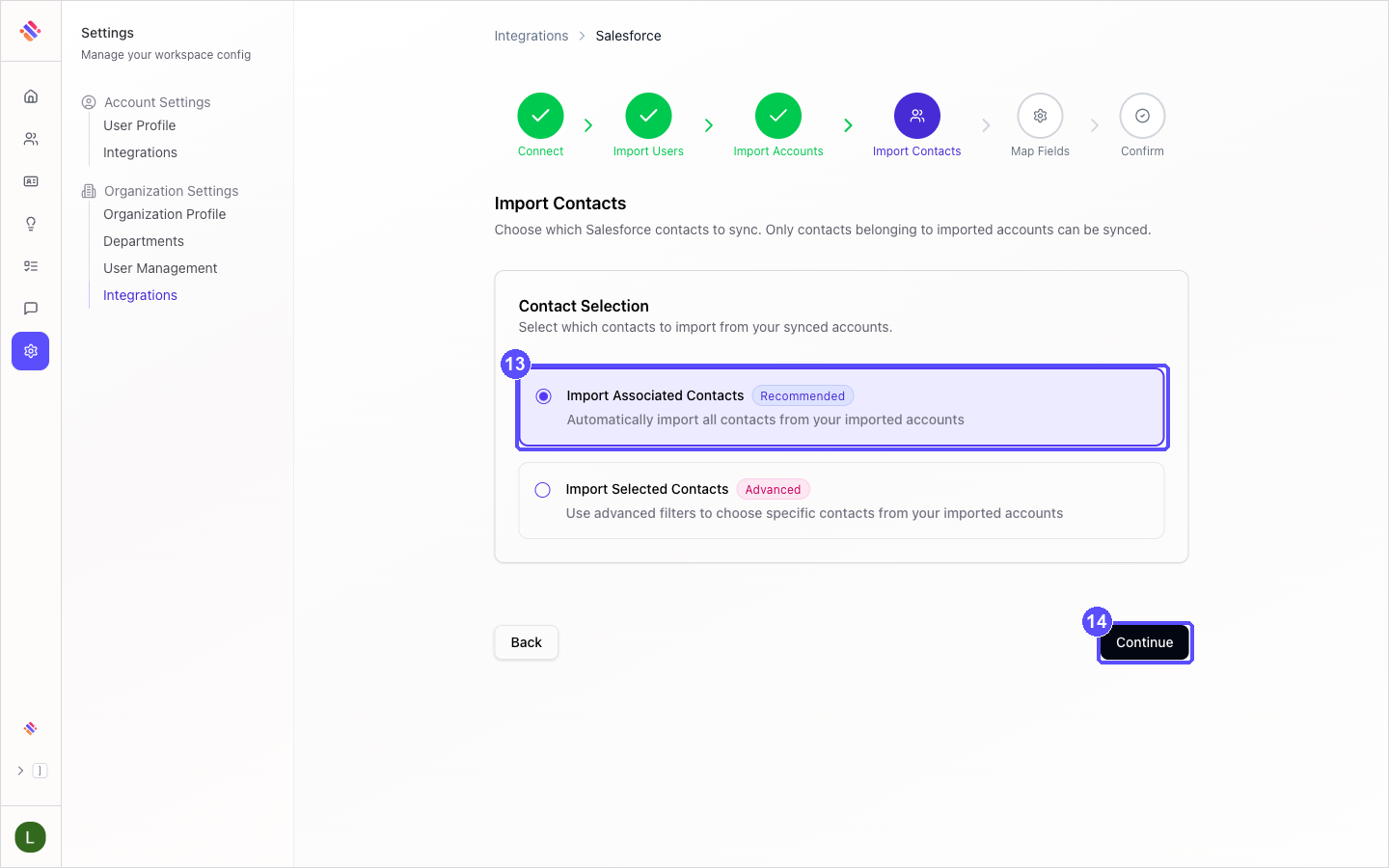
Under Contact Selection, choose which contacts to import. Only contacts that belong to imported accounts can be synced.
Click Continue.
04
Map fields
Skrift pre-fills the field mapping with the standard Salesforce fields. In most organizations you can keep it as it is.
Under Required Fields, review the three mappings that the integration needs. They are already set.
Under Recommended Standard Fields, keep the suggested mappings. Click Add Field to map more fields, or the trash icon to remove one.
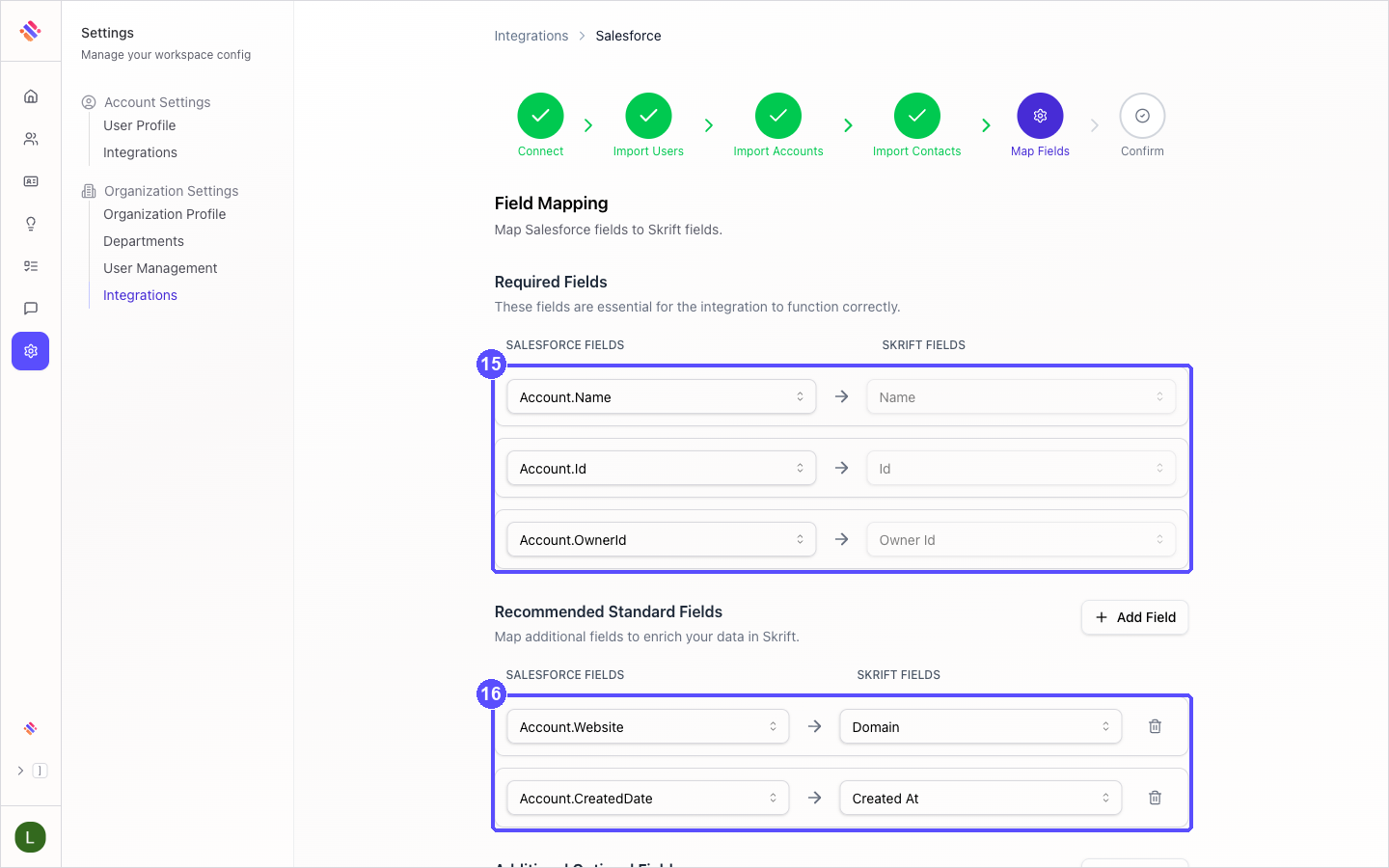
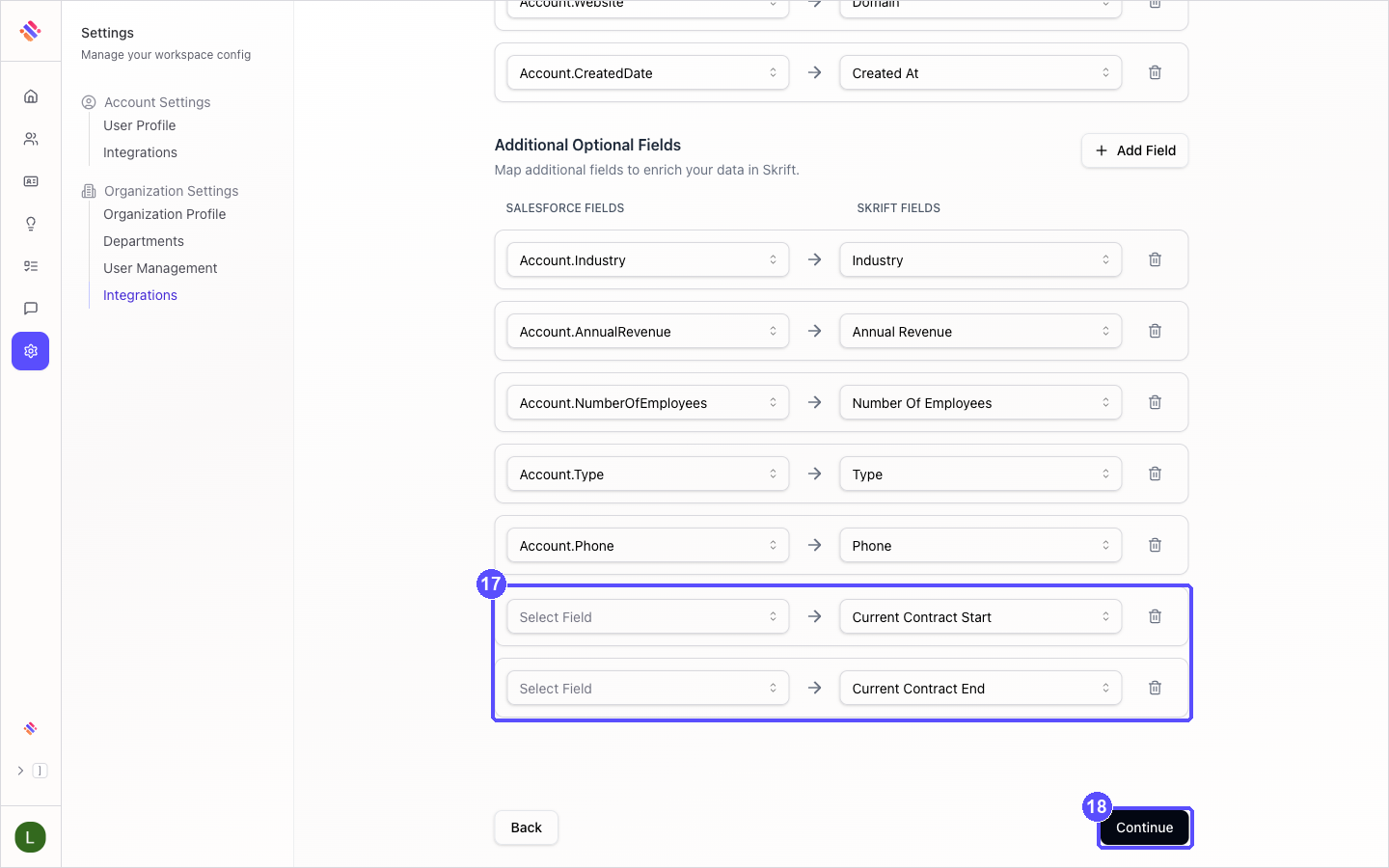
Under Additional Optional Fields, review the remaining mappings. If you track contract dates in Salesforce, choose the matching fields for Current Contract Start and Current Contract End; otherwise leave them empty.
Click Continue.
05
Review and start the import
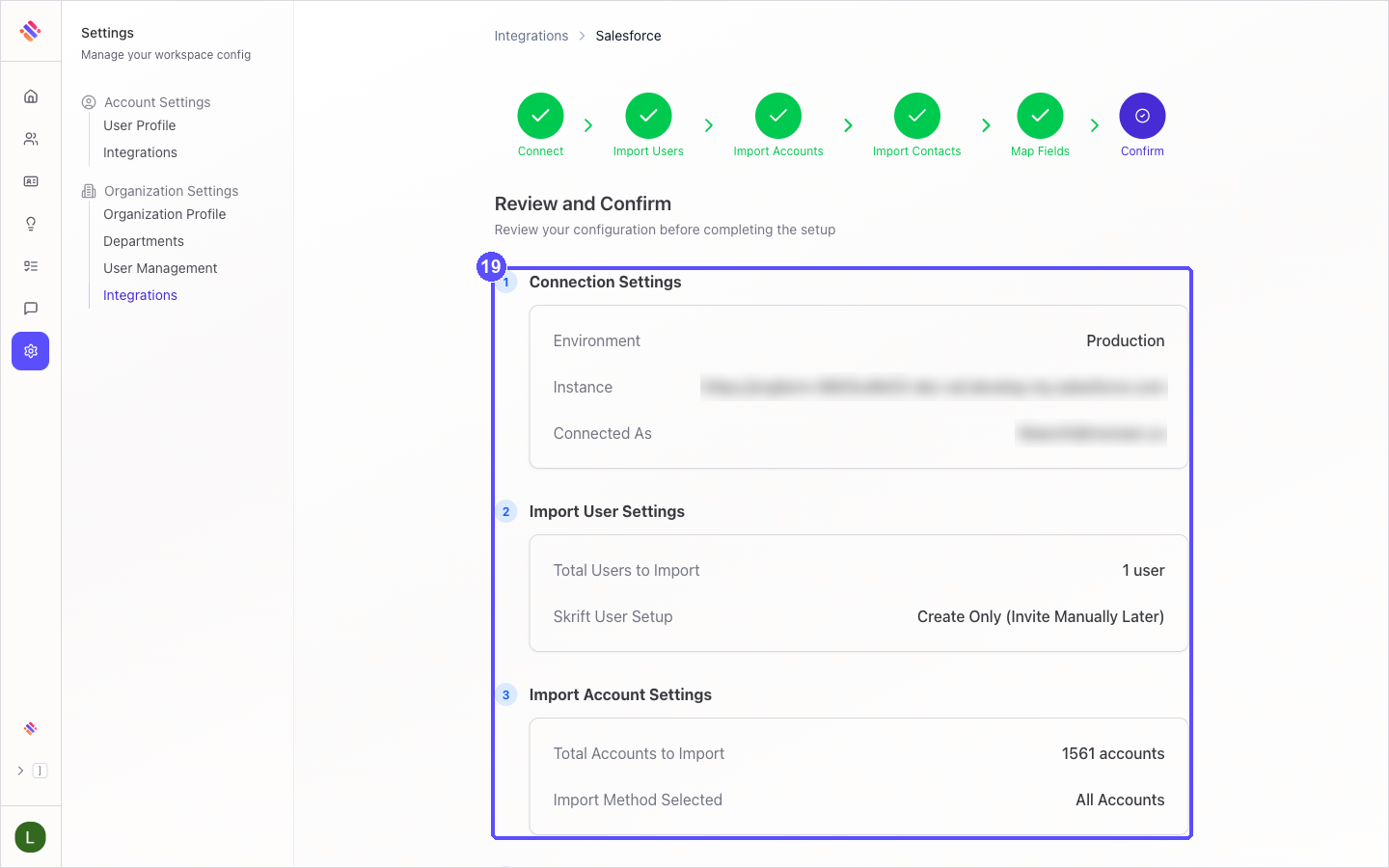
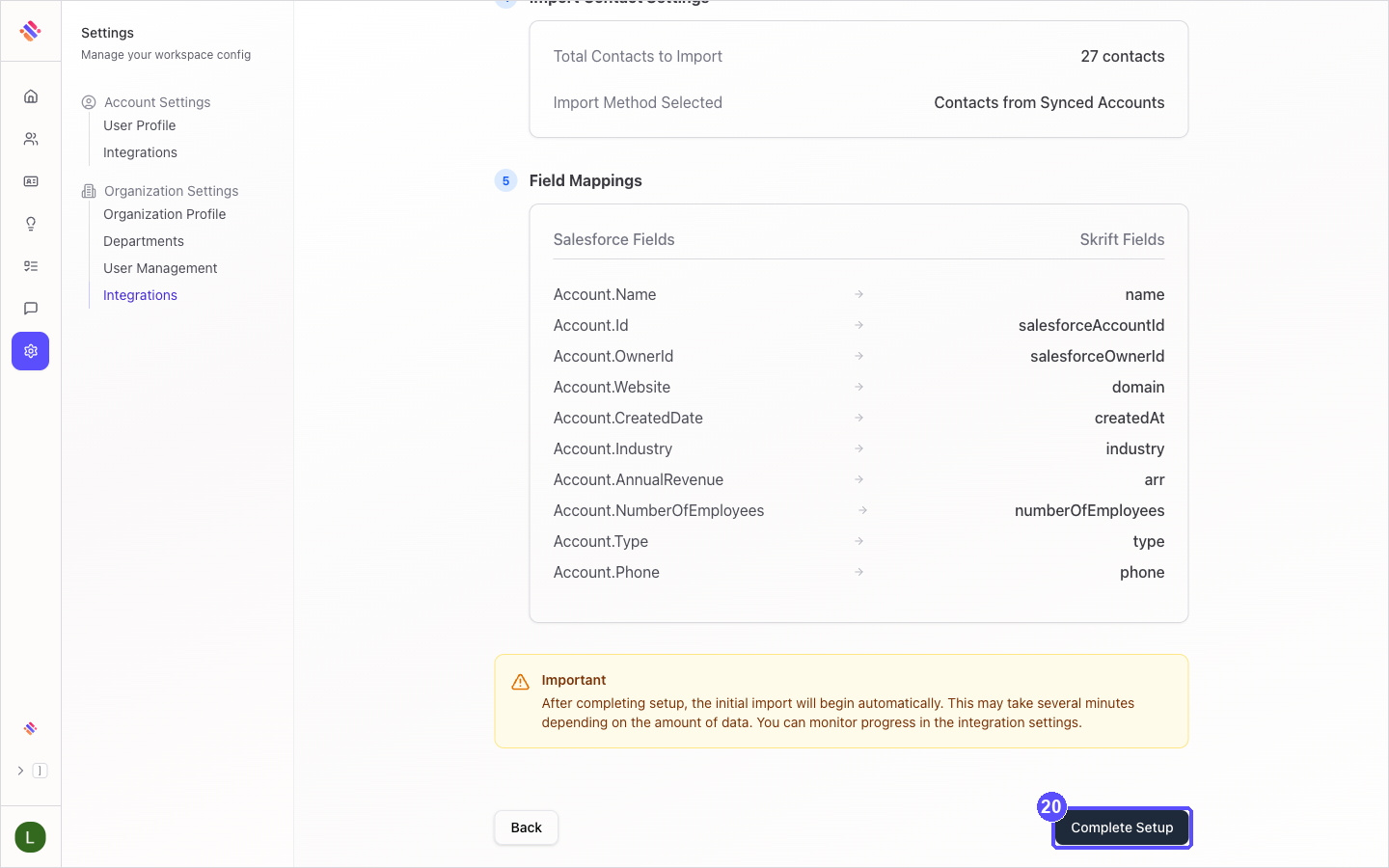
On Review and Confirm, check the connection, the number of users, accounts and contacts to import, and the field mappings. Click Back to change anything.
Click Complete Setup. The initial import starts automatically, and Skrift opens the Manage Salesforce integration page.
06
Confirm it worked
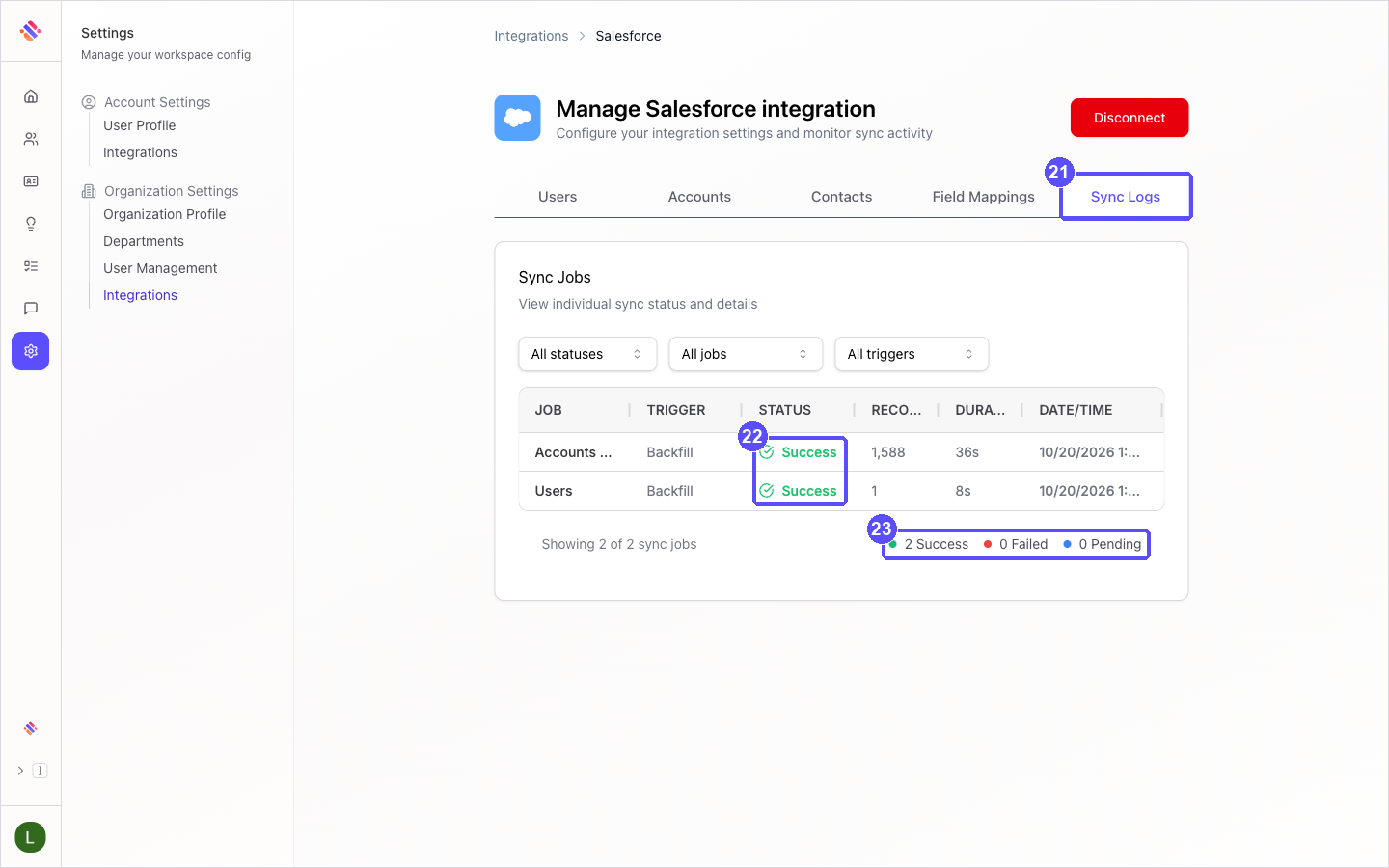
On the Manage Salesforce integration page, open the Sync Logs tab.
Two jobs appear: Users and Accounts & Contacts. While they run, their status is Pending; when they finish, it changes to Success, with the number of records imported.
The summary below the table confirms the result, for example 2 Success, 0 Failed, 0 Pending.
On the Integrations page, the Salesforce card now shows Connected (production). The setup is complete: from now on, Skrift keeps your users, accounts and contacts up to date with Salesforce automatically.
Invite users later
If you chose Create User Only, the new users exist in Skrift but have not received an invitation yet. Invite them when you are ready:
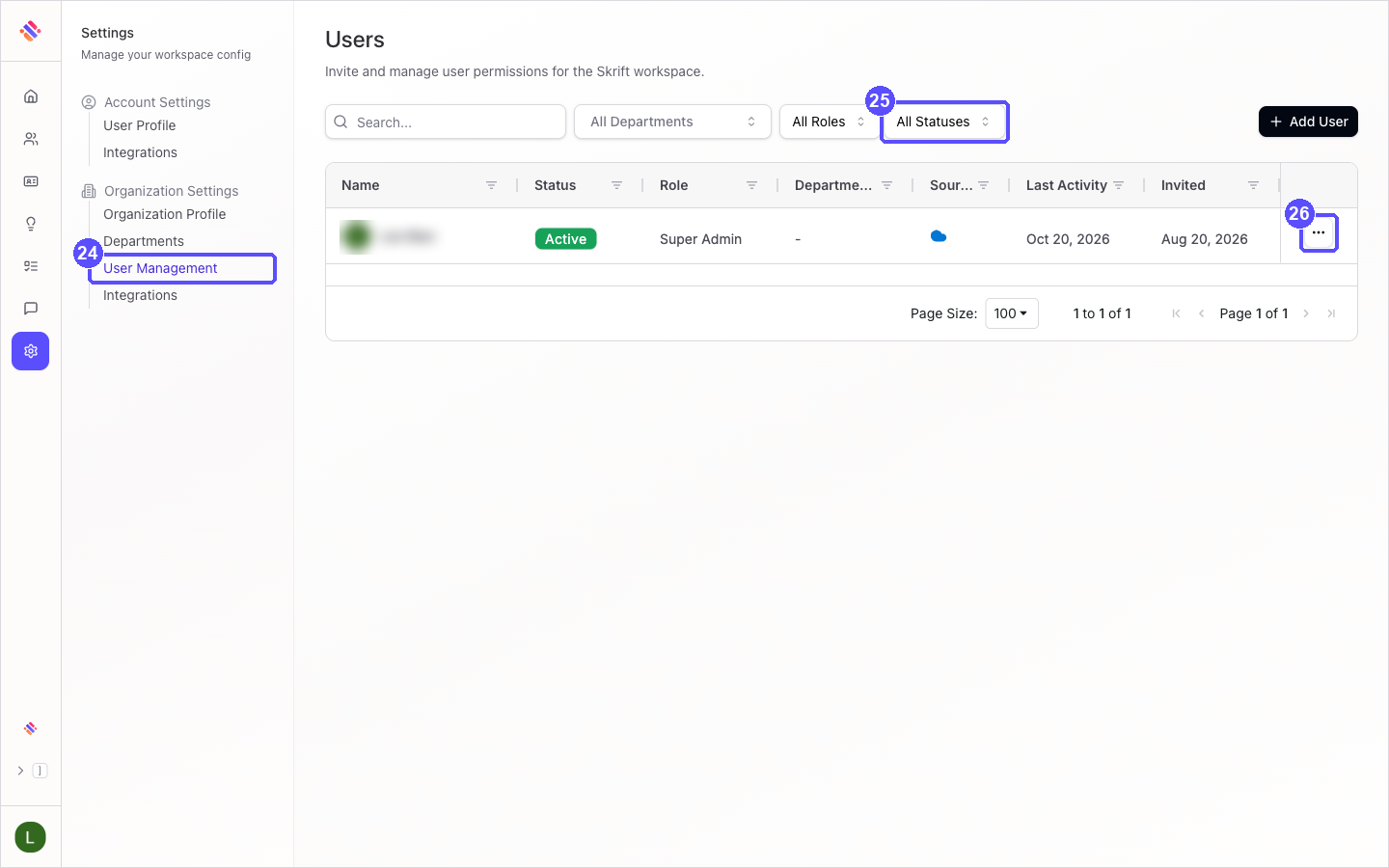
Under Organization Settings, click User Management.
To find the users waiting for an invitation, open the status filter (All Statuses) and choose Pending Invitation.
Open the menu at the end of the user's row and click Send Invitation.
Troubleshooting
| What you see | What to do |
|---|---|
| The Salesforce window does not open | Your browser blocked the pop-up window. Skrift then opens the Salesforce sign-in in the same tab instead; complete it there. To use the separate window, allow pop-ups for Skrift. |
| Salesforce connection failed due to insufficient permissions | The Salesforce user cannot read Users, Accounts or Contacts. Ask your Salesforce administrator to grant read access, or connect with a System Administrator user, then click Connect Salesforce again. |
| Invalid state or code. Please try connecting again. | The sign-in took too long or was interrupted. Click Connect Salesforce again and complete the sign-in in one go. |
| There was an error saving your user sync configuration. Please try again. | Click Continue again. If the message persists, reload the page; the wizard resumes at the same step. |
| Failed to load configuration data. | Reload the page. If the message persists, contact your Skrift representative. |
| Fewer accounts or contacts than expected | Skrift only imports what the connected Salesforce user can see. Review your selections (on the Salesforce card, click Manage), or connect with a user who has View All Data, as described in Which Salesforce user should I use? |
| The connected Salesforce user leaves your organization | Open the Salesforce card in Integrations, click Manage, then Disconnect. Choose Disconnect and Keep My Data, confirm, and run the setup again with another administrator account. Do not choose the option that deletes your data. |
| A job shows Failed in Sync Logs | Open the job to see the details, then contact your Skrift representative. |