SETUP GUIDE · GOOGLE CALENDAR
Connect Google Calendar to Skrift.
Your meetings appear in Skrift automatically, so every customer call starts prepared. It takes about three minutes.
Version 1.0 · October 2026
Before you begin
Make sure you have the following:
- Access to Skrift with your own user.
- Your work Google account, the one that holds your customer meetings.
- About 3 minutes.
01
Connect your Google Calendar
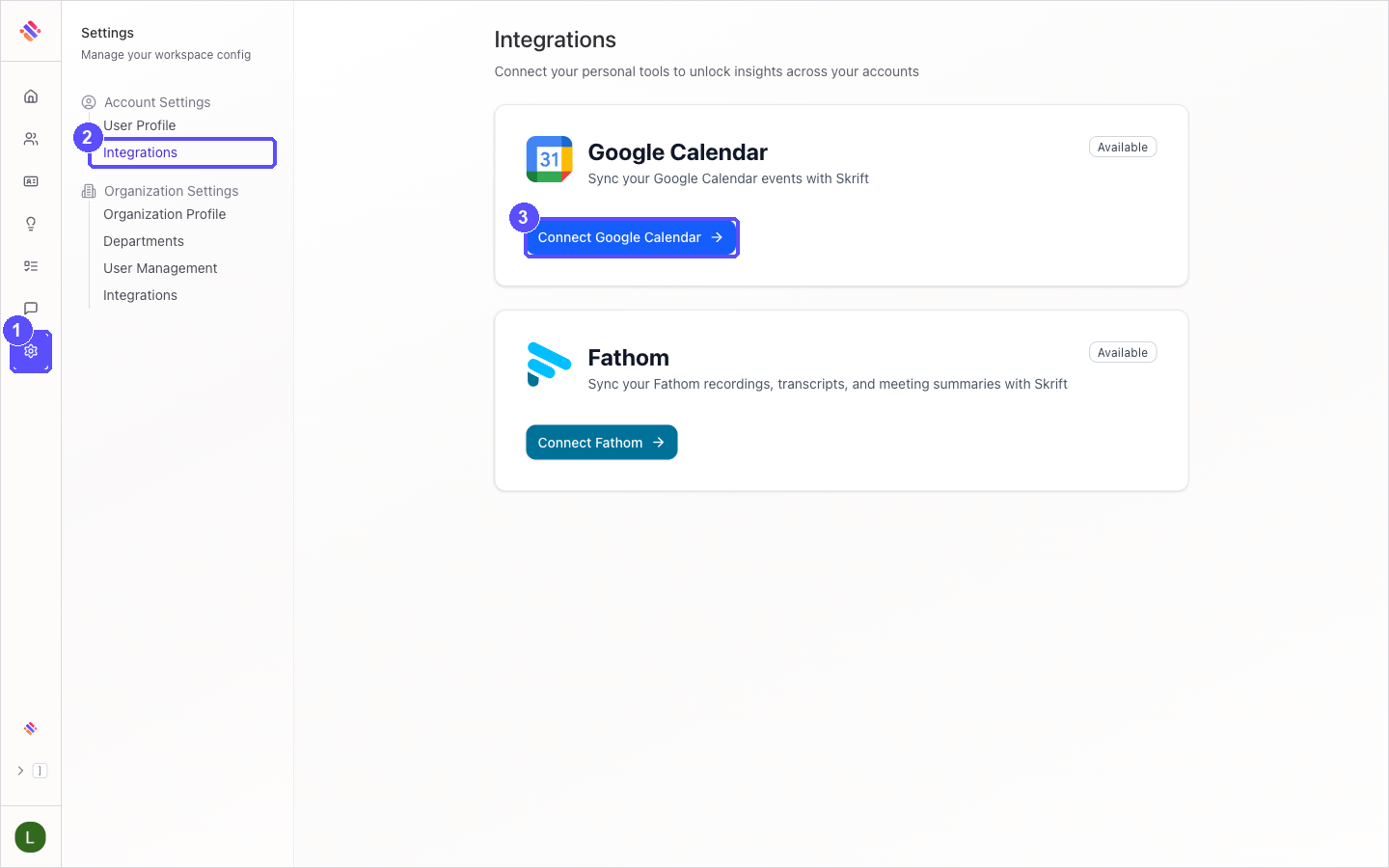
In Skrift, click the Settings icon in the left navigation bar.
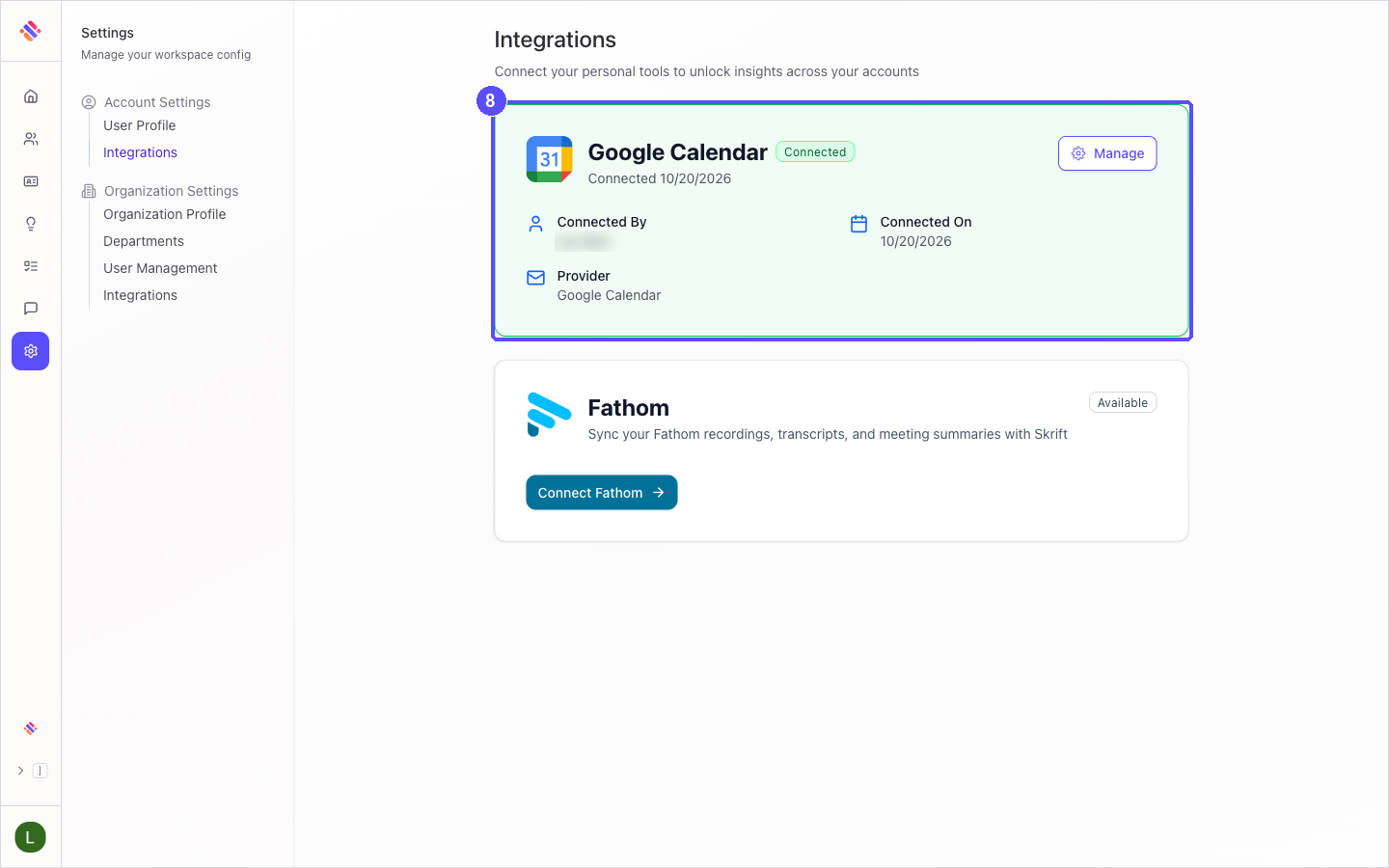
Under Account Settings, click Integrations.
On the Google Calendar card, click Connect Google Calendar. Google opens in a new window.
Choose your work Google account. If it is not listed, click Use another account and sign in.
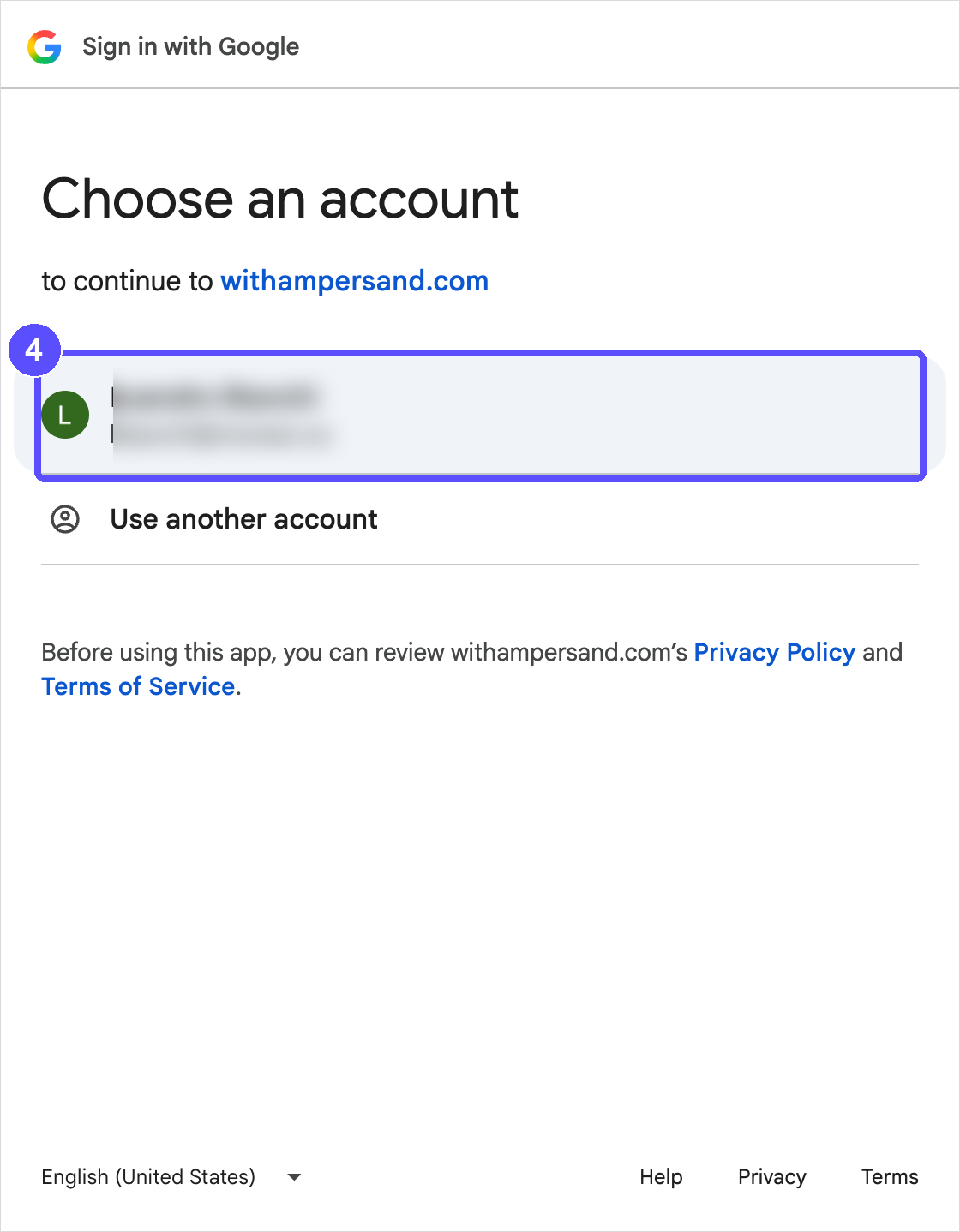
Google mentions withampersand.com in these screens. Ampersand is the integration partner Skrift uses to connect securely to Google.
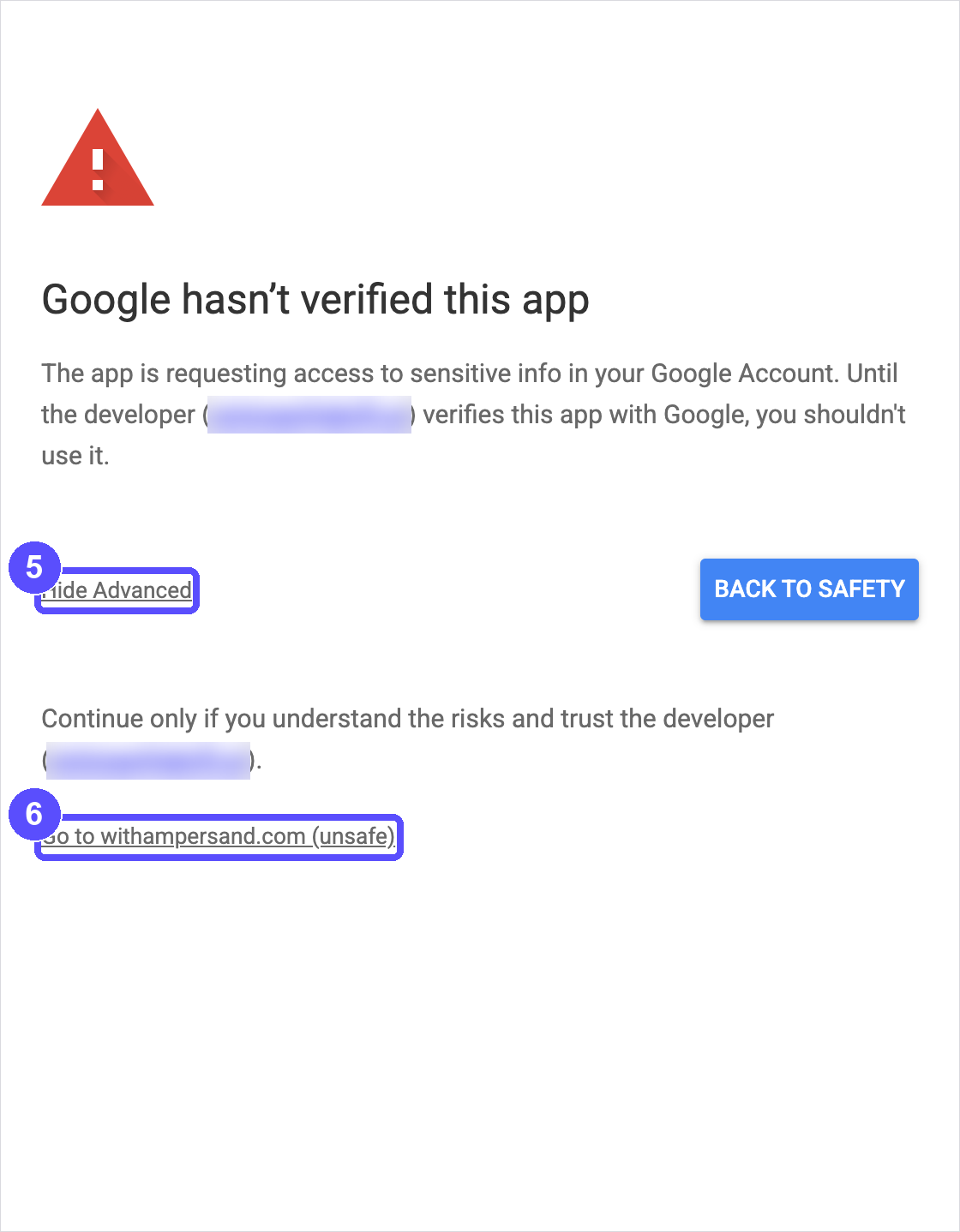
If Google shows Google hasn't verified this app, click Advanced. The link then reads Hide Advanced, as in the image.
Click Go to withampersand.com (unsafe).
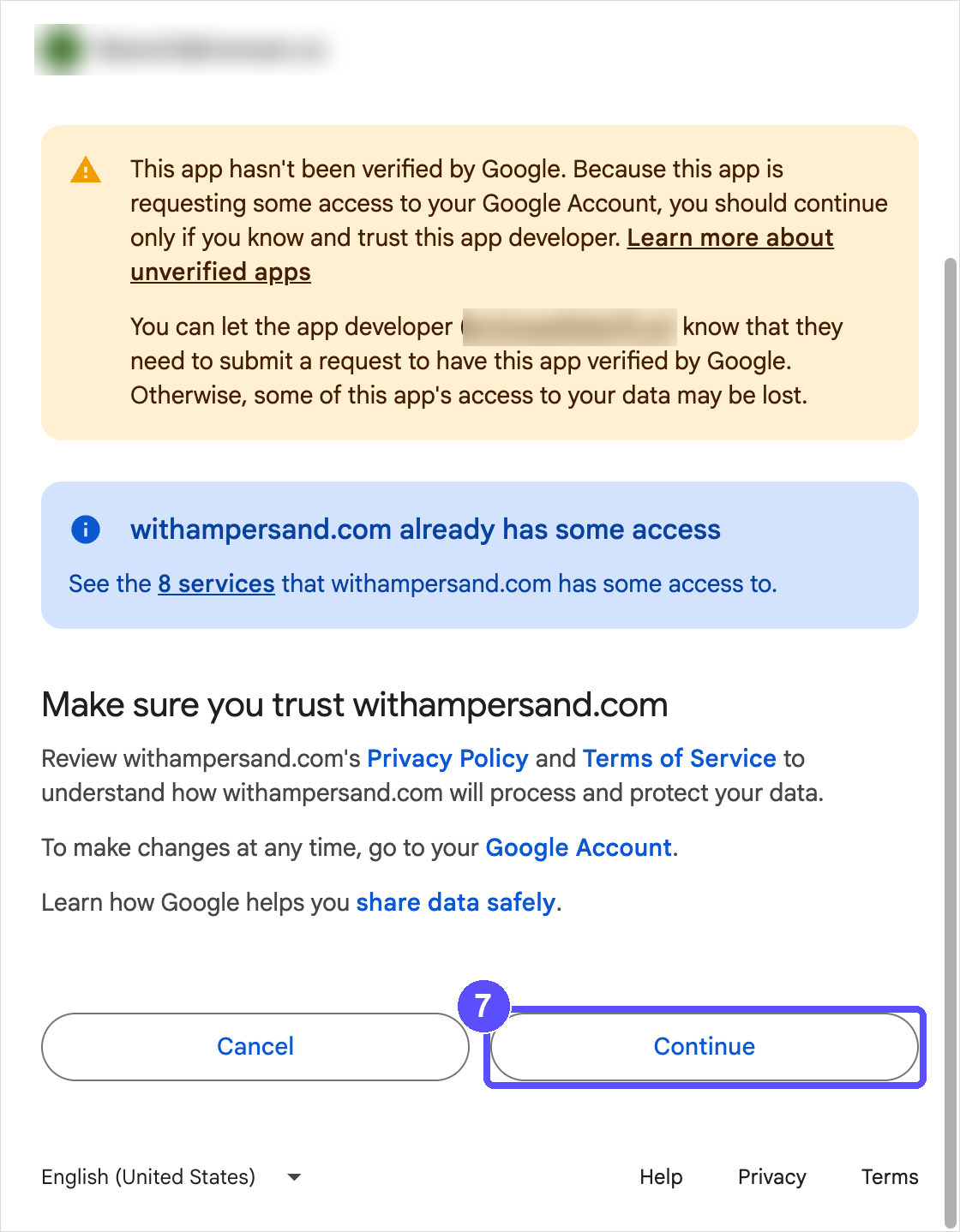
Review the access request and click Continue. If Google shows a list of permissions with checkboxes, select all of them first: Skrift needs access to your calendar events to show your meetings.
The Google window closes and the card shows Configuring... for a few seconds. When it shows Connected, your calendar is linked to Skrift.
02
Confirm it worked
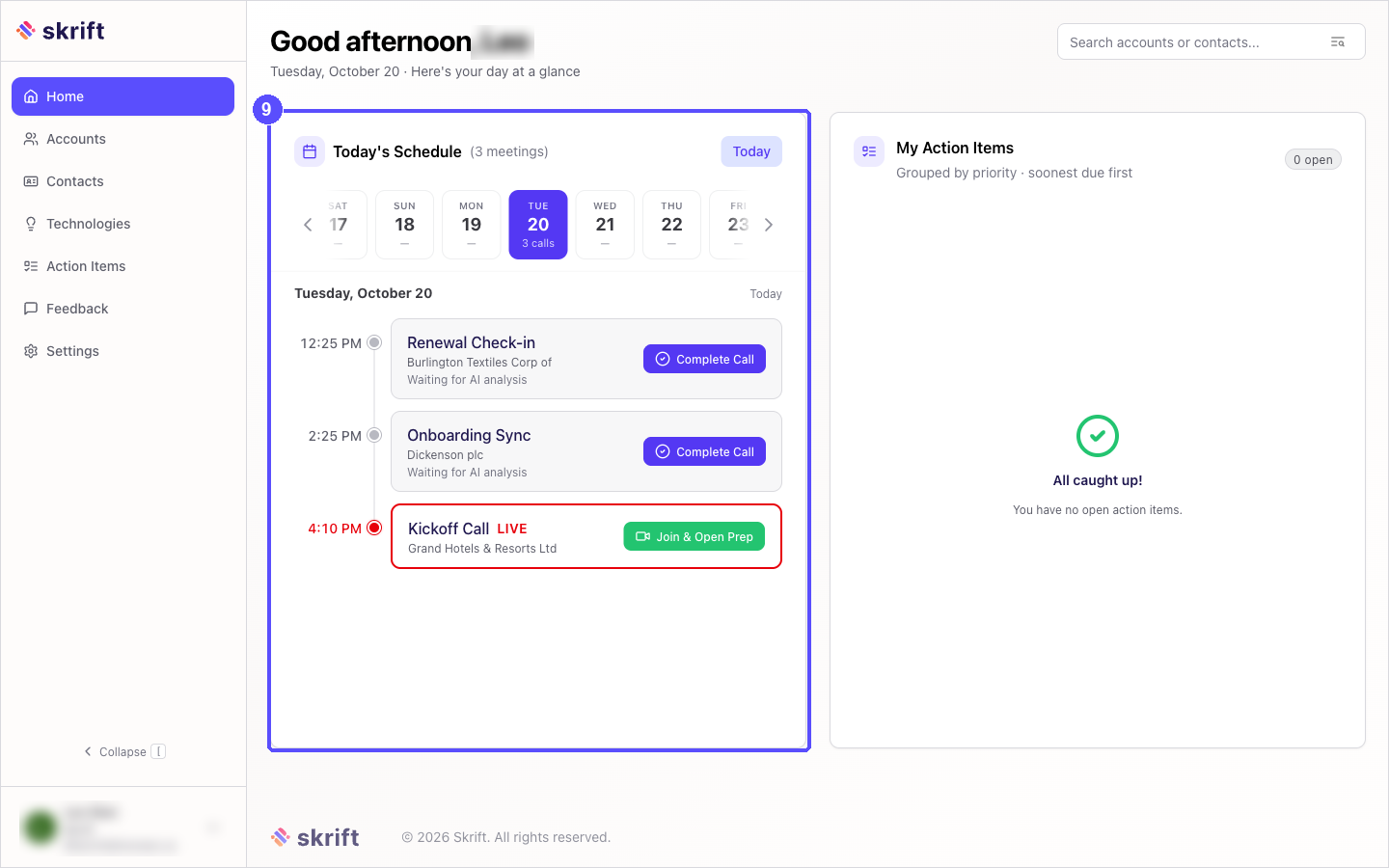
Click Home in the left navigation bar. The Today's Schedule card lists the meetings from your Google Calendar for today, with the related account and a button to open the call preparation.
Disconnect or switch accounts
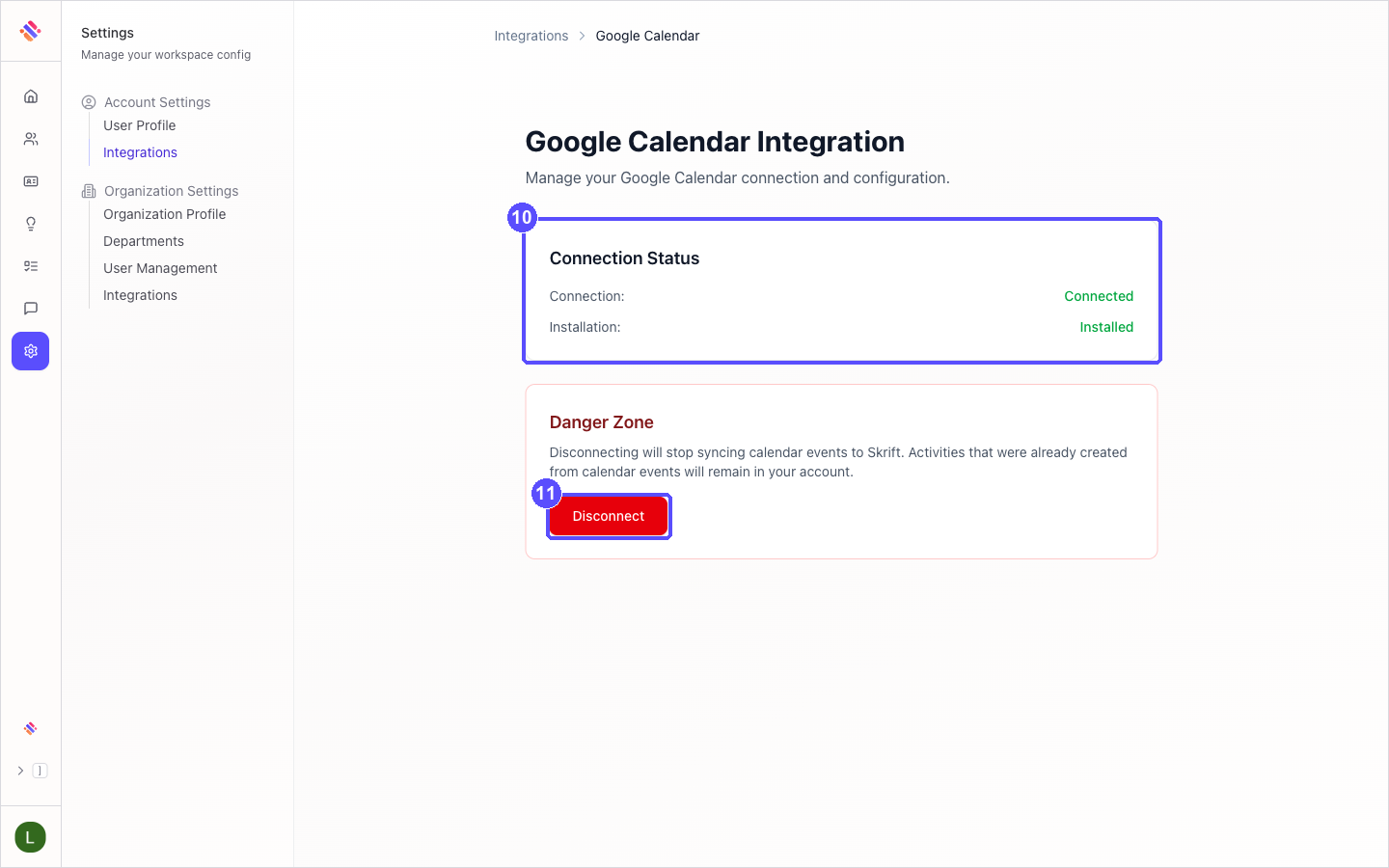
On the Google Calendar card, click Manage. The Connection Status shows whether your calendar is connected.
To stop syncing, click Disconnect and confirm with Yes, Disconnect. Meetings already in Skrift remain. To use another Google account, disconnect and connect again.
Troubleshooting
| What you see | What to do |
|---|---|
| Popup was blocked. Allow popups for this site and try again. | Allow pop-up windows for Skrift in your browser, then click Connect Google Calendar again. |
| The card stays on Configuring... | Wait a minute and reload the page. If it does not change, disconnect from Manage and connect again. |
| You connected the wrong Google account | Click Manage, then Disconnect, and connect again choosing your work account. |
| No meetings in Today's Schedule | Check that today has meetings in the connected Google Calendar, and give the first sync about 10 minutes. |
| Any other error while connecting | Close the Google window, reload Skrift and try again. If it persists, contact your Skrift administrator. |