SETUP GUIDE · GONG INTEGRATION
Connect Gong to Skrift.
Your Gong calls and transcripts reach Skrift automatically, ready for analysis. No exports, no manual uploads.
Version 1.0 · October 2026
Before you begin
Make sure you have the following before you start:
- A Skrift account with the Admin role. The Integrations settings are only visible to administrators.
- A Gong administrator account with access to the Gong Admin center.
- About 10 minutes.
01
Connect Gong to Skrift
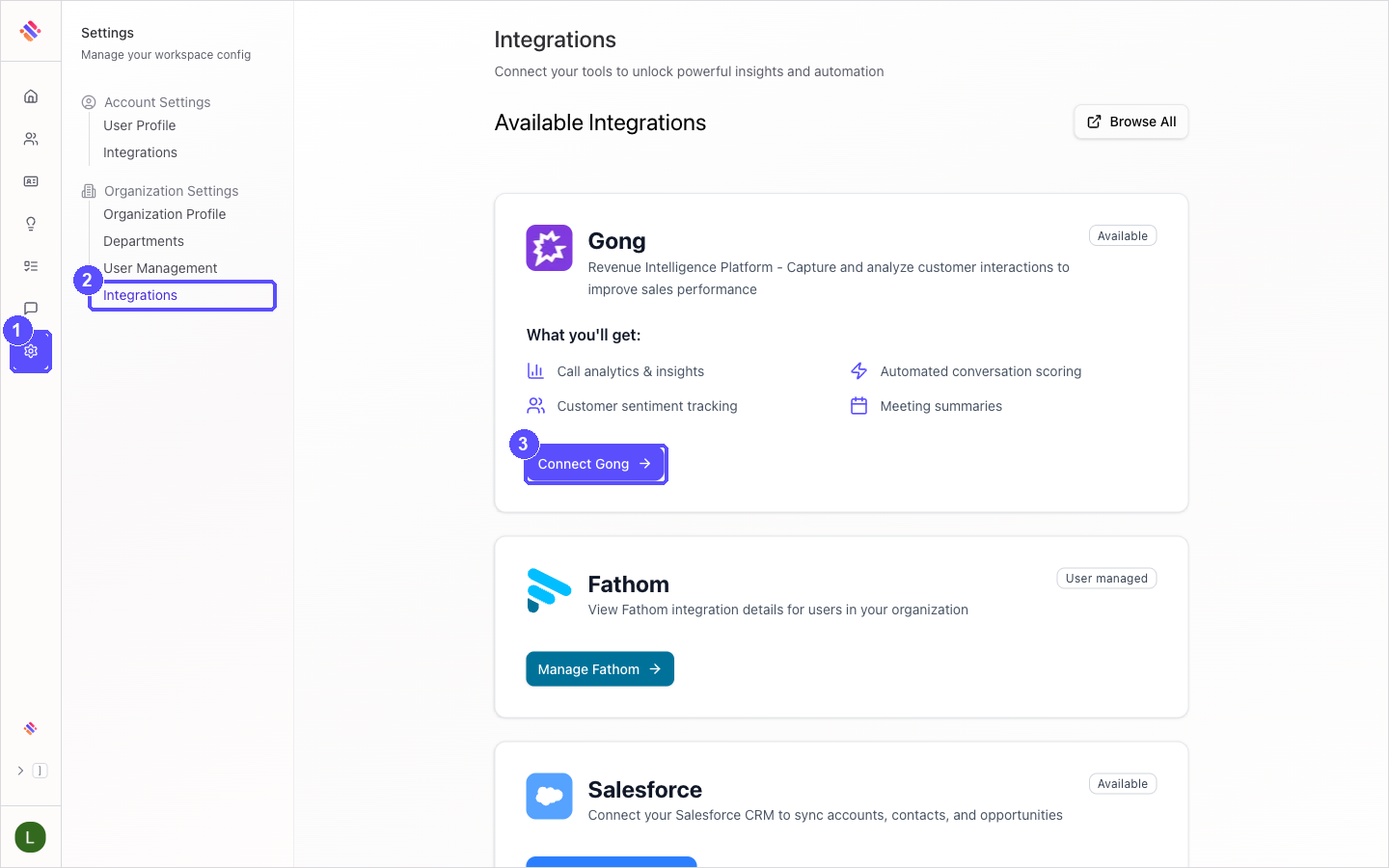
In Skrift, click the Settings icon in the left navigation bar.
Under Organization Settings, click Integrations.
On the Gong card, click Connect Gong.
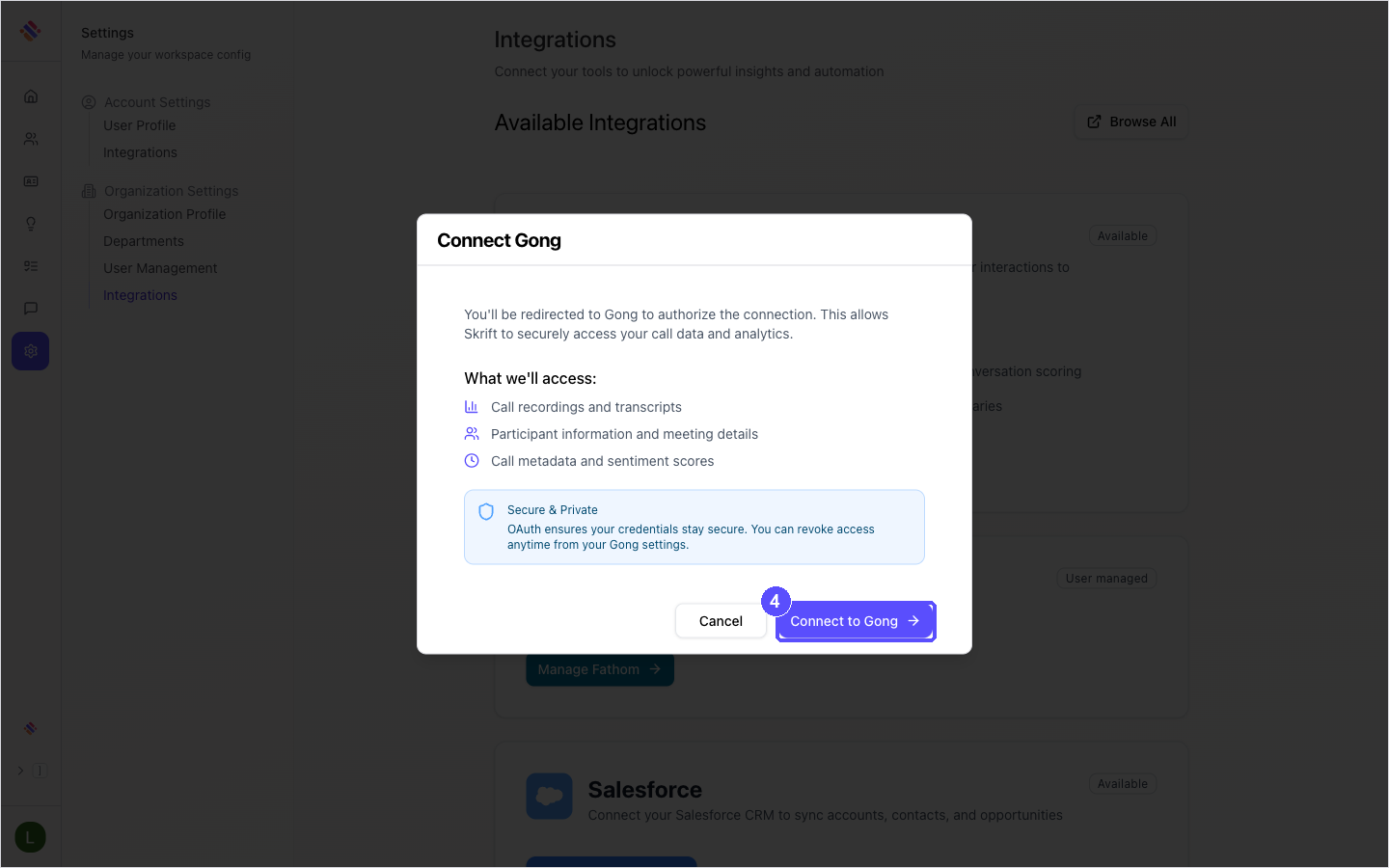
Review what Skrift will access and click Connect to Gong. Skrift redirects you to Gong. If you are not signed in to Gong, sign in first.
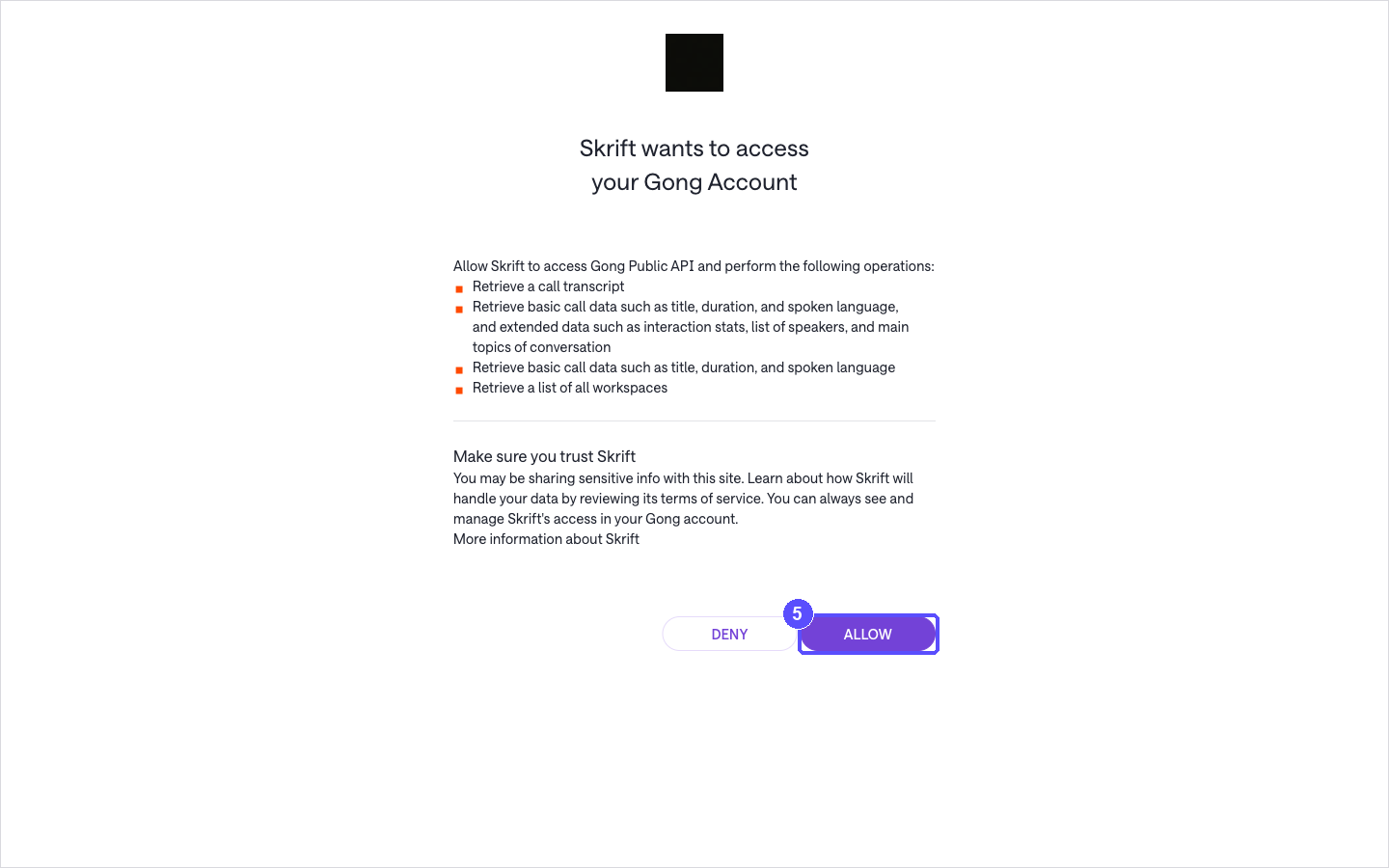
Gong asks you to confirm that Skrift may access your Gong account. Click ALLOW. Gong returns you to Skrift, on the Manage Gong integration page.
02
Choose what to sync
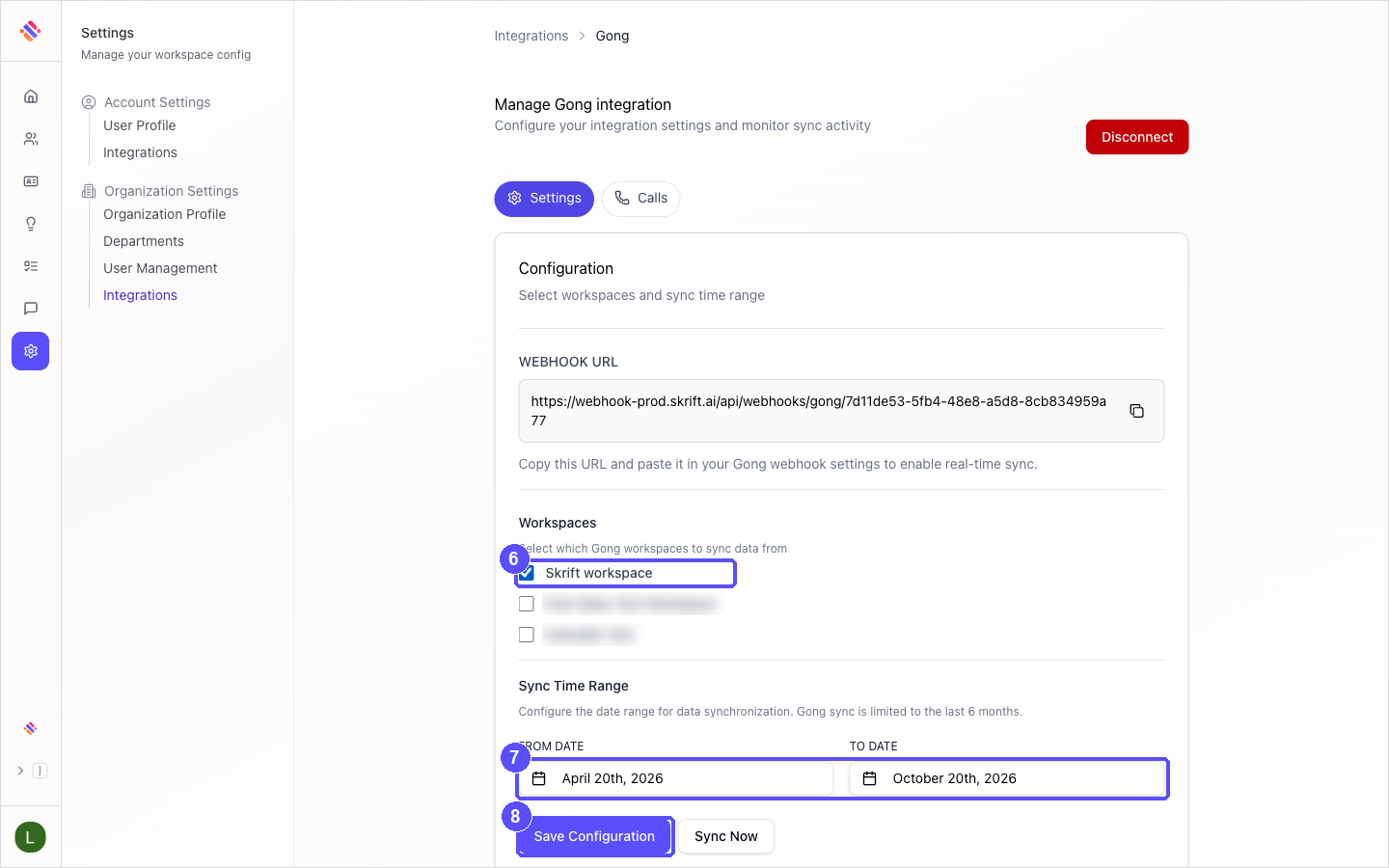
On the Manage Gong integration page, tell Skrift which calls to import.
Under Workspaces, select every Gong workspace whose calls Skrift should import. You must select at least one.
Under Sync Time Range, choose the FROM DATE and TO DATE for the first import. By default Skrift imports the last six months, which is also the maximum.
Click Save Configuration. The message Settings saved successfully confirms the change.
03
Turn on real-time updates in Gong
A Gong automation rule sends each new call to Skrift as soon as Gong processes it. Without this rule, new calls reach Skrift only through a daily catch-up sync, which can take up to a day.
On the same Skrift page, click the copy icon next to WEBHOOK URL. This address is unique to your organization; keep it at hand for the next steps.
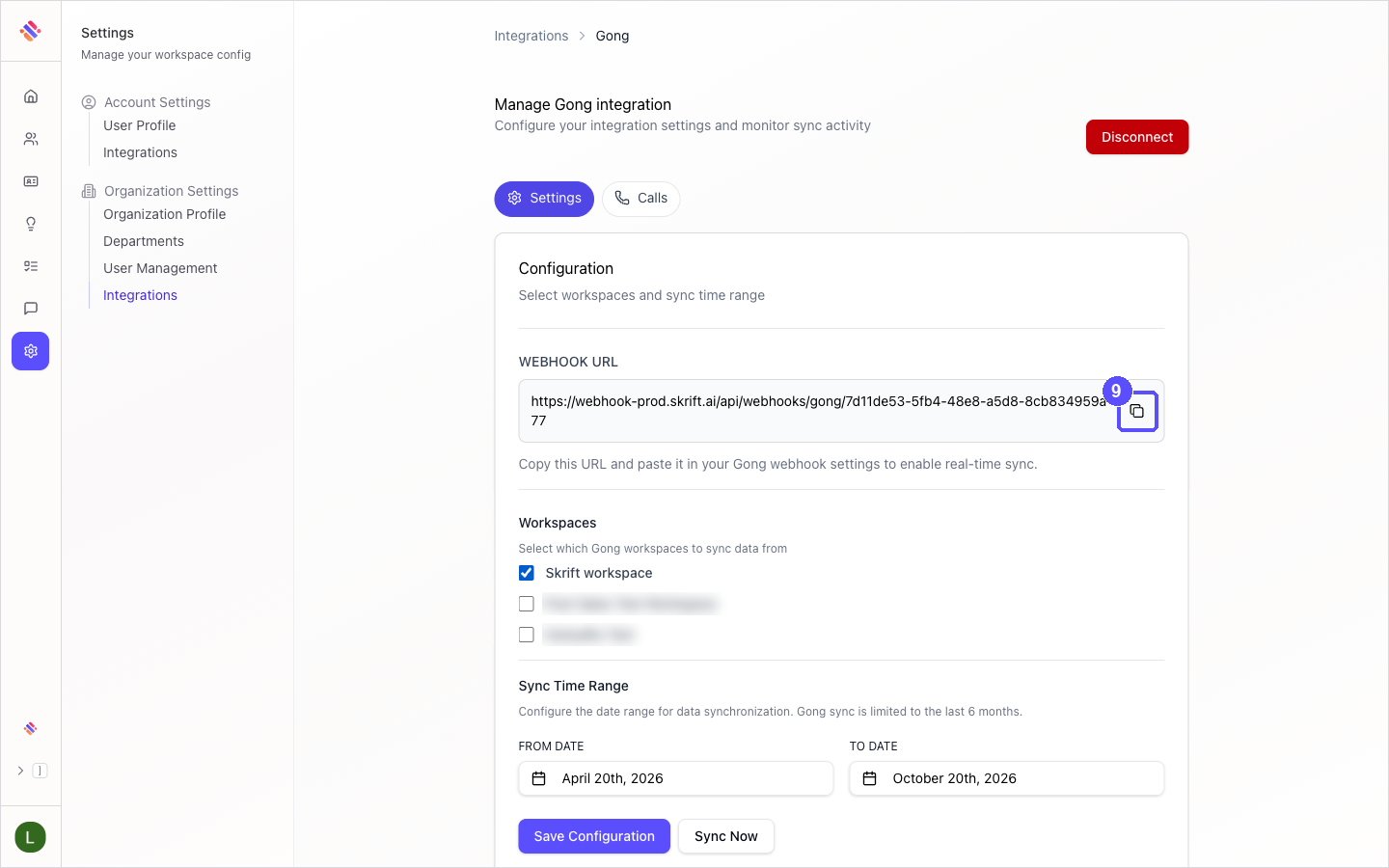
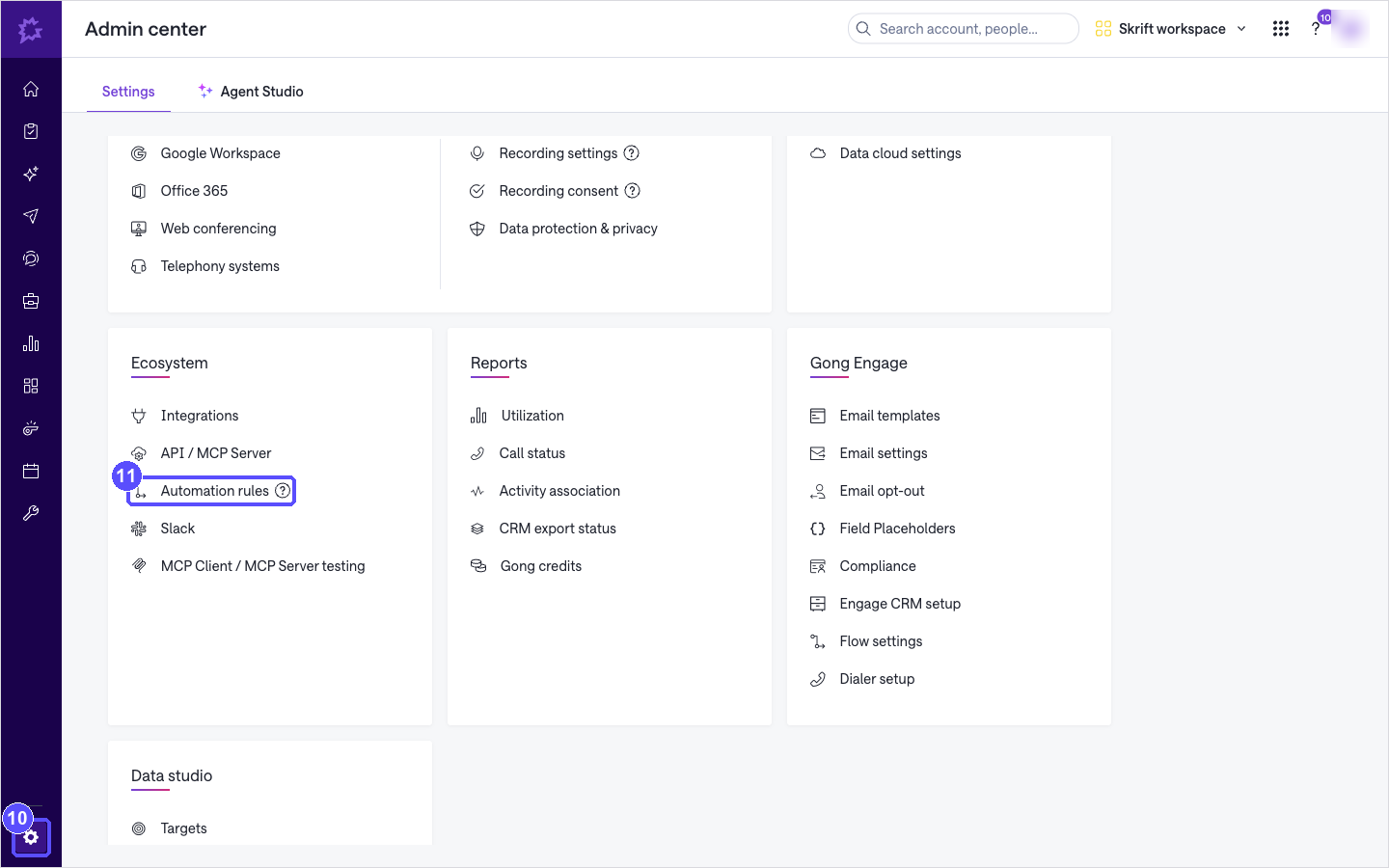
In Gong, open the Admin center from the icon at the bottom of the left navigation bar.
In the Ecosystem section, click Automation rules.
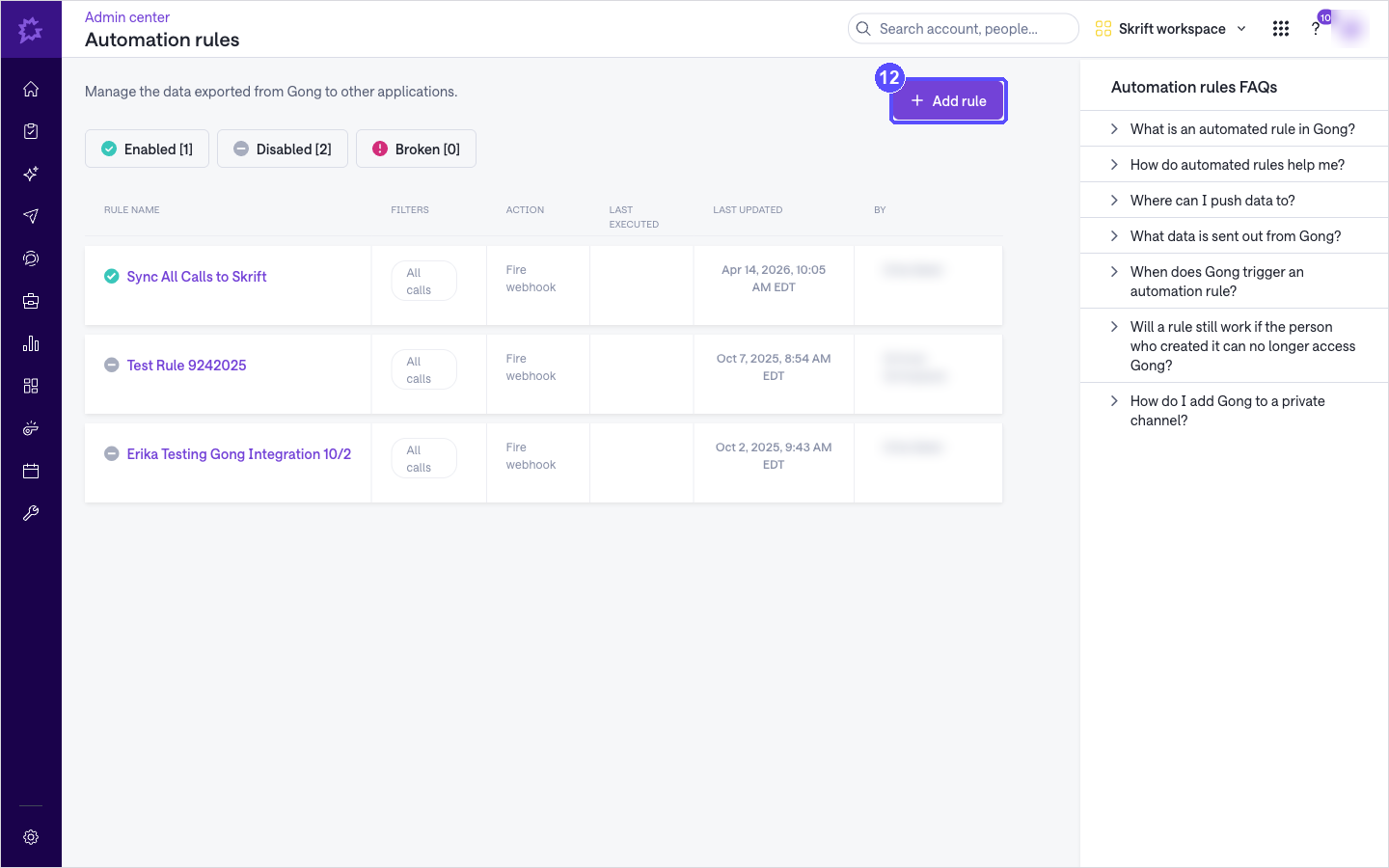
Click Add rule.
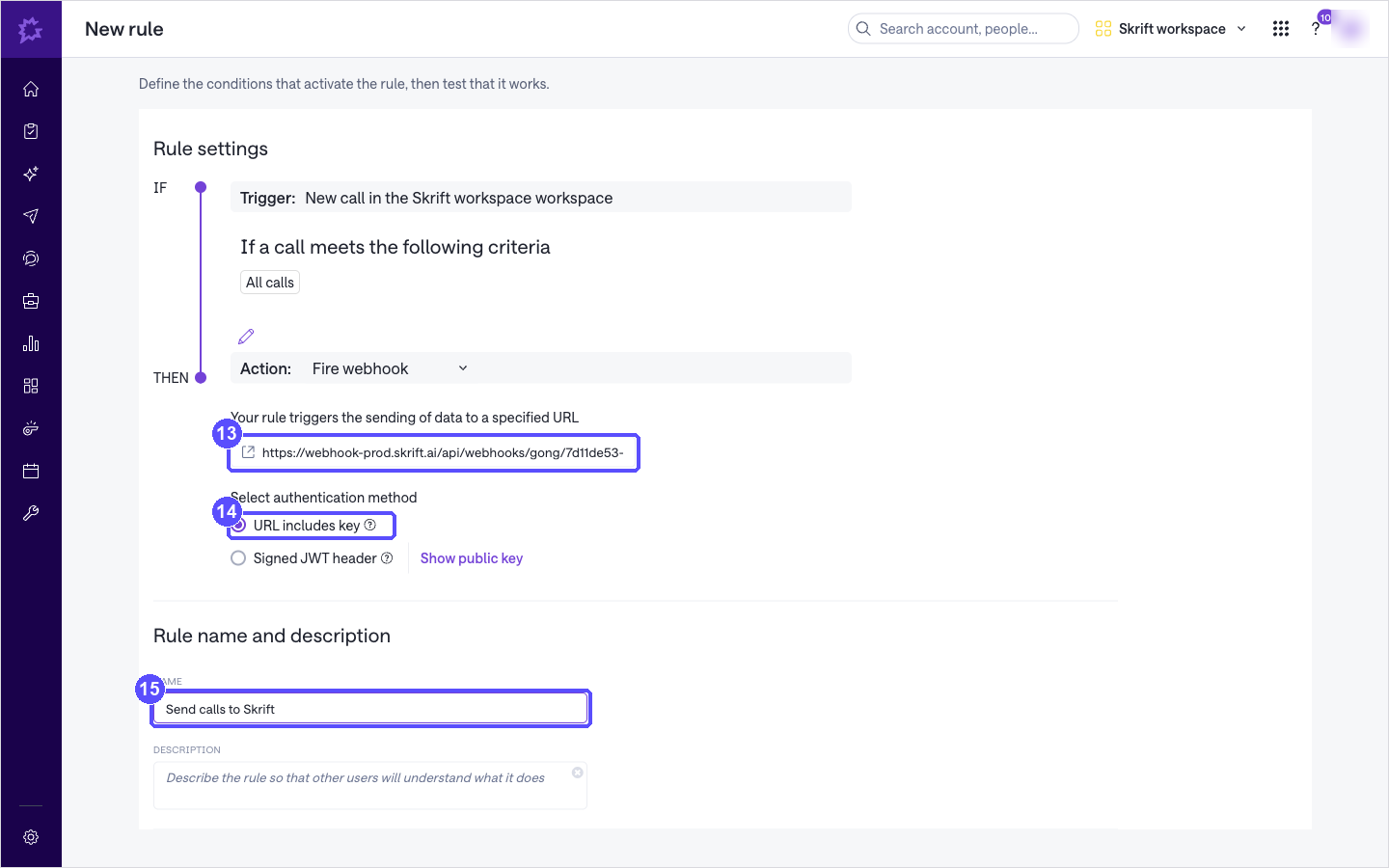
Gong pre-fills the trigger with New call, the criteria with All calls and the action with Fire webhook. Keep these values.
Paste the Skrift webhook URL into the URL field.
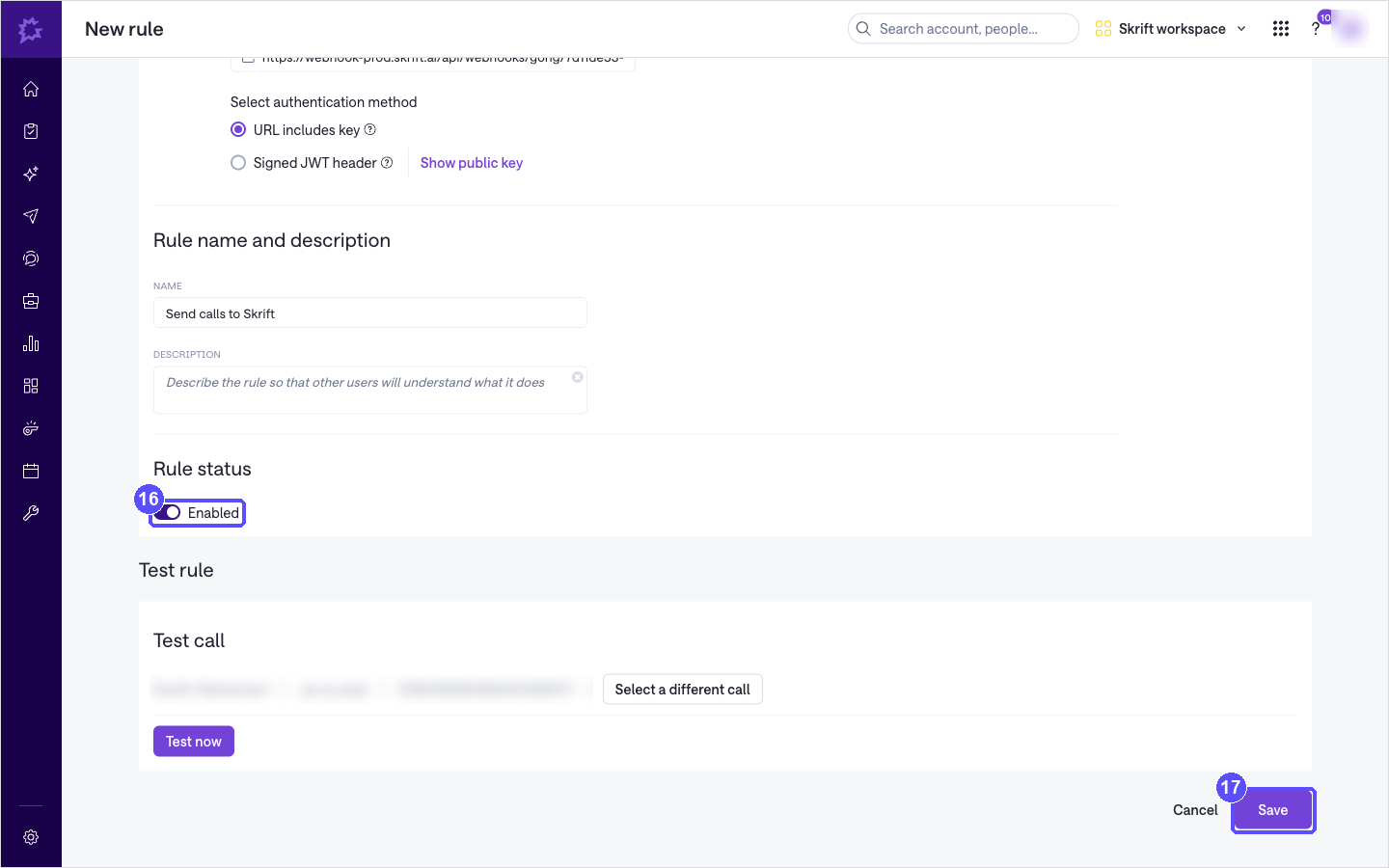
Under Select authentication method, keep URL includes key selected.
Under NAME, enter a name you will recognize, for example Send calls to Skrift.
Scroll down to Rule status and switch it to Enabled.
Click Save.
04
Run the first sync and confirm it worked
Return to the Manage Gong integration page in Skrift to import the calls in the date range you selected.
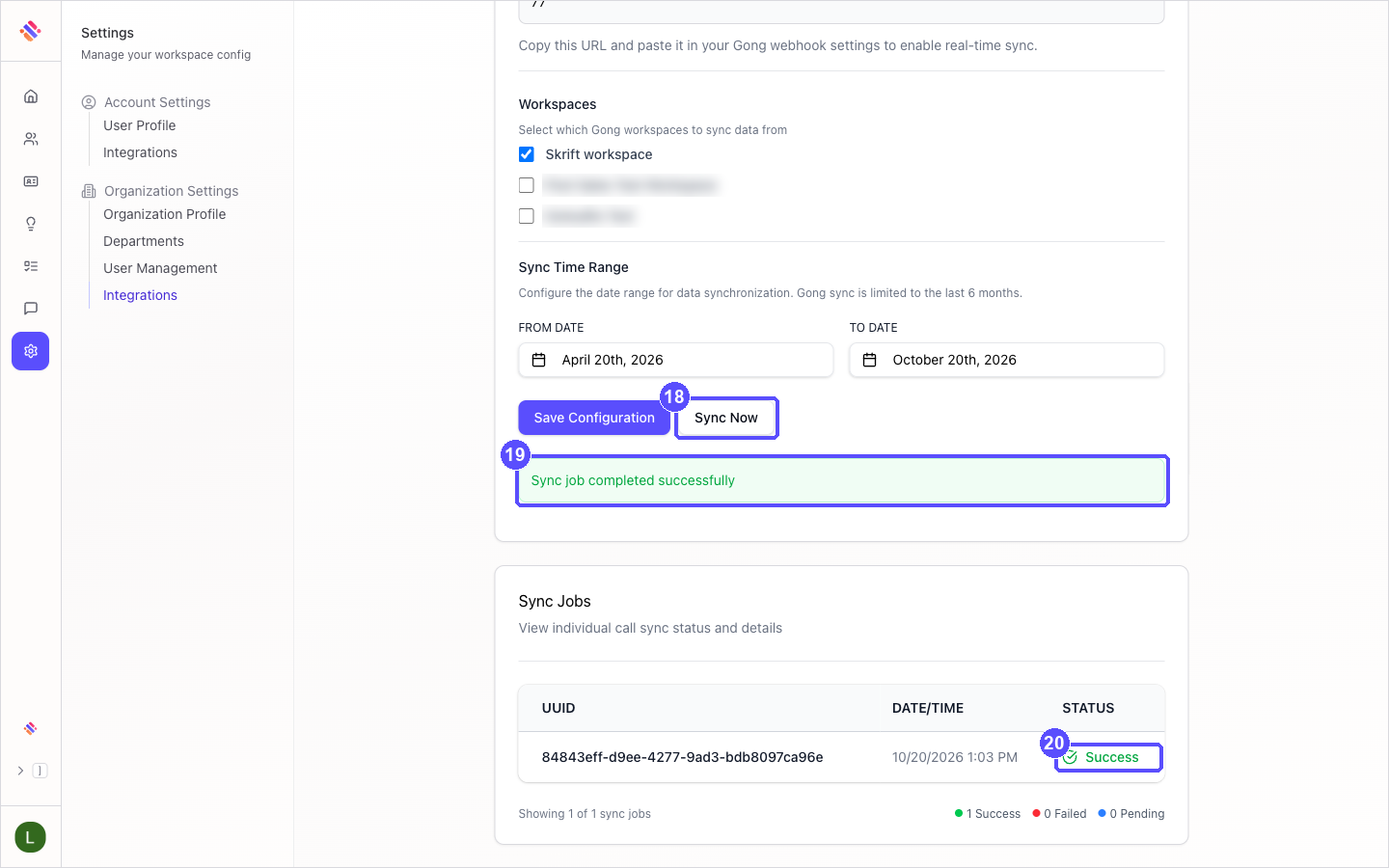
Click Sync Now. The message Sync job started successfully appears, and Skrift checks the progress automatically.
When the import finishes, the message changes to Sync job completed successfully.
In the Sync Jobs card, the job shows the status Success.
The setup is complete. From now on, every new call that Gong processes reaches Skrift through the automation rule, without any further action.
Troubleshooting
| What you see | What to do |
|---|---|
| Invalid state or code on the Integrations page | The authorization took longer than 10 minutes, or another connection attempt was started in the meantime. Click Connect Gong again and complete the steps in one go. |
| Token exchange failed on the Integrations page | Gong did not grant access, for example because DENY was clicked. Click Connect Gong again and click ALLOW in Gong. |
| Failed to create Gong account | Skrift could not save the connection. Try again. If the message persists, contact your Skrift representative. |
| Save Configuration and Sync Now are disabled | Select at least one workspace under Workspaces. |
| Gong sync can only include calls from the last 6 months. | Move the FROM DATE to a date within the last six months. |
| Gong sync cannot include future dates. | Set the TO DATE to today or earlier. |
| From date must be before to date. | Choose a FROM DATE earlier than the TO DATE. |
| Sync job failed | Click Sync Now again. If the job fails a second time, contact your Skrift representative. |
| New calls do not appear in Skrift | In Gong, open Admin center › Automation rules and check that your rule is listed under Enabled and that its URL matches the WEBHOOK URL shown in Skrift. If you reconnected Gong, the URL has changed: update the rule. |